Latest News

Showing posts with label Stats Problems. Show all posts

Blogger Magic - Enabling Scripts, In Your Browser

Similar to the need to properly filter cookies in the browser, we have the need to properly filter scripts.

Cookies and scripts are completely different elements - but proper filtering of each is essential, to making many Blogger features operate properly.

If you have a problem with Blogger - either accessing / using the dashboard, or using / viewing a blog - one of the simplest things to check, complementing cookie filter settings, is the browser script filter settings.

The browser is the most important component, when setting up security - and scripts, like cookies, are a common challenge.

Script filters are adjusted differently, for each browser. Consider the multiple domains used by Blogger / Google - and layered security, on any computer, used by the owner and readers of any blog.

  • Chrome.
  • Firefox.
  • Edge / Internet Explorer.
  • Opera.
  • Safari.

Setting the script filters in Chrome.

With Chrome, you enable scripts, using Settings ("Customize and control Google Chrome") - aka the 3 bar toolbar icon.

In Settings, if necessary, click on "Show advanced settings" at the very bottom of the page.

Under Privacy, click on "Content settings", which gives you the "Content Settings" wizard. Here, you have selections for Cookies and Javascript - including "Manage exceptions" for each section. Select the recommendation.

  • JavaScript: Allow all sites to run JavaScript

Hit "Done" - and close the Settings tab.


From "Privacy", hit "Content settings".
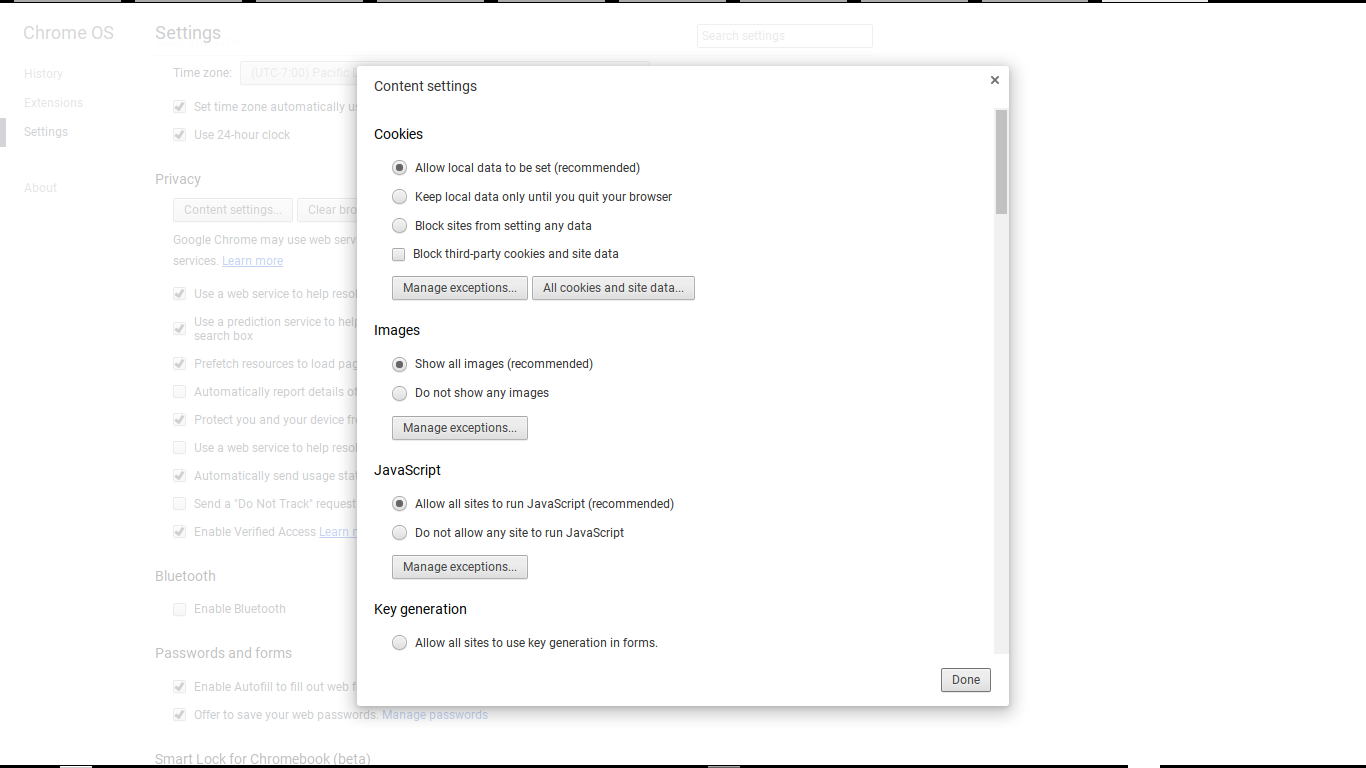


Under "JavaScript", select "Allow all sites to run JavaScript (recommended)".


Alternately, you may select "Do not allow any site to run JavaScript" - then use "Manage exceptions", and allow all blog(s) that you publish, and the many Blogger and Google domains, to run JavaScript. Make your exceptions complete, for best results.

Setting the script filters in Firefox.

Firefox does not contain any native script filters. The most popular add-on for Firefox is NoScript - and this is how most Firefox users filter scripts.

You'll need to designate "blogger.com", "google.com", and any Google domain excepting "blogspot.com", as trusted - when you load any display for the domain in question. An untrusted domain will show a "NoScript Untrusted" icon in the status area at the bottom of the window. To enable each domain, you position the cursor over the NoScript icon and select "Allow (domain URL)" in the popup menu.

Setting the script filters in Edge / Internet Explorer.

With Internet Explorer, you enable security settings - both cookies and scripts - from the browser menu, using Tools - Internet Options. Optionally, you may access the "Internet Options" applet directly from the Windows Control Panel.

  • IE uses a zone defense setting, where you designate "blogger.com" and "google.com", in Security, as being in the Trusted zone. Please note that "blogspot.com", in general should not be in the Trusted zone - .
  • You will want the published URL of your blog(s) - including any country local domain URLs, in the Trusted zone.
  • Default settings for the Trusted zone will allow proper filtering of scripts.
  • Verify proper settings, with "Trusted sites" selected, and the Security level slider control set to "Medium". Hit "Custom level", and examine the Settings list.
  • Look for the "Scripting" section, 3/4 of the way to the bottom of the list.
  • You will observe 6 options under "Scripting". Default settings will have all options Enabled, except "Allow Programmatic clipboard access"; you may wish to Enable this to allow easy use of Post Editor.
  • Hit "OK", and "Yes" if necessary, then "OK" again.

Setting the script filters in Opera.

With Opera, you enable cookies and scripts from the Advanced tab, in the Preferences wizard. The Content menu contains selections for scripting.

Setting the script filters in Safari.

With Safari, you enable scripts, using the Preferences wizard. The Privacy wizard, in Preferences, contains selections for scripts ("Cookies and website data”).

Script filters cause problems with Stats "Don't track ..." and other Blogger features.

Many problems, reported in Blogger Help Forum: Get Help with an Issue, with various Blogger features - and the Blogger dashboard - involve script filters.

Stats and the "Don't track ..." option used to involve third party cookies, for many years. In March 2016, the "Don't track" wizard was rewritten to run under the URL of the blog, when being set - and now requires enabling scripts from the blog URL.

Consider how your blog is published.

If your blog is published to "blogspot.com", consider the non "blogspot.com" alias that may be relevant to your country. If your blog is published to a custom domain, consider the custom domain URL.

Many computers have other relevant settings, which block scripts.

Many blog owners and readers will have computers, and networks, with additional protection. Scripts, in the browser, may not be the only filter that needs to be checked - but this is a start, to learning how to control the script filters.

Having checked and corrected your script filters, continue by checking browser cookie filters - then check cookie and script filters, outside the browser. Also check settings on any ad blocker add-on - which may be an app, or a browser extension.

Be aware that many settings may not be obvious - and that both obvious and obscure settings may be updated, without your intention or knowledge.


Many #Blogger problems are cause by overly restrictive script filters. If you, a blog owner or reader, are going to use Blogger successfully, you need to configure your browser properly - for both cookies and scripts.

The New Stats "Don't track" Option, And Script Filters

The new Stats "Don't track" option is an improvement, to many blog owners.

"Manage tracking your own pageviews", as before, starts from the Stats dashboard page. The wizard now runs from a sub directory of the blog managed by the dashboard - and uses a normal (first party) cookie.

Now, blog owners no longer must enable third party cookies, to make Stats ignore their page views. This is an improvement - but it can still present a challenge, for some blog owners.

Besides filtering "third party" cookies, not all blog owners and readers will permit complete control by content under the individual blogs.

If you want "Don't track" to work reliably, enable scripts for the blog URL.

If you want the "Don't track" option to work reliably for your blog, you now must enable scripts to run under the published URL.

We have to trust scripts run from "blogger.com" - that is the Blogger dashboard. The Blogger dashboard is produced by Blogger Engineers - and if we trust Blogger to host our blogs, we have to trust their code.

Scripts which run under the individual blogs - "blogspot.com", local country domains, and custom domains - can be added by the owner of each individual blog. Not all blog owners should be trusted.

People who mistrust third party cookies may also mistrust scripts which run under "blogspot" etc. Unfortunately, to make "Manage tracking your own pageviews" work, you (the blog owner) now have to open up any script filters, which block content run as part of your blog.

Start from the Stats dashboard page.

Click on "Manage tracking your own pageviews".


"Manage tracking your own pageviews" now runs under the blog published URL. This removes "third party" cookies from the problem.

With a custom domain published blog, you must use the wizard in "HTTP:" mode.

By default, the new wizard runs in SSL mode. This will be a problem, with blogs published to custom domains.


If the blog is published to a custom domain, you will need to change "https" to "http".


Check "Don't track my views for this blog." - then close the tab / window.


The new wizard, "Would you like to have your pageviews counted when you visit this blog?", now runs as "blogging.nitecruzr.net", for this blog.

http://blogging.nitecruzr.net/b/statsCookieManage

If you publish to a custom domain, and you can correct the URL, you will see the same, for your blog. If you publish to "blogspot", you can see the same also. This is a script - and is subject to security filters.

And yes, there is no "Save" button, or link. Just the box.

Don't track my views for this blog.

Click the box or don't. As soon as you click, it's set.

You should trust your blog - even though you do not trust other blogs, in general.

Generally, as the blog owner, you can safely trust content run under your blog. You probably should not trust "blogspot.com", and all blog publishers, however. This means that you will require multiple filter rules - for every browser and security add-on, that contains a script filter.

  • Block all "blogspot.*". (Please!).
  • Permit "yourblog.blogspot.com".

If you publish to "blogspot.com", and live in a country which has a local domain, such as the UK, you need a rule to permit the local domain alias.

  • Permit "yourblog.blogspot.co.uk".

If you have multiple blogs - and want to block pageviews from being counted, for each blog, you need permissive filter rules for each blog.

  • Permit "yourblog1.blogspot.*".
  • Permit "yourblog2.blogspot.*".
  • etc.

If you publish your blog to a custom domain, you need a rule to permit the domain URL. For this blog, I need

  • Permit "blogging.nitecruzr.net".

If you do not permit the proper URL(s) for your blog, you will find Stats counting your own pageviews. Possibly, this will happen even with "Don't track my views for this blog." checked. In some cases, the check mark will be cleared, when you close the window.


Owners of #Blogger blogs who don't want their activity tracked by Stats now see a new "Don't track" wizard. Using the "Don't track" option no longer requires enabling third party cookies - and worrying about the security issues.

Unfortunately, this now means that the "Don't track" wizard may now be vulnerable to filters which restrict scripts that run under blogspot, and any custom domains.

Stats And "Don't track", And Custom Domains

Blog owners have been trying to block tracking their own Stats pageviews, for a few years.

This option has long been unusable, for blogs published to custom domains. Recently, Blogger Engineering updated the option - and the dashboard page with the link.

The new Stats option to "Manage tracking your own pageviews" is a start.

Unfortunately, it provides no obvious help, to people who publish their blogs to custom domains.


Start from the Stats dashboard page.

Click on "Manage tracking your own pageviews".


And you get an HTTPS link.


As we all know, blogs published to custom domains won't provide HTTPS access.


Change "https" to "http".


And you can make it work.


If you manually remove the "s", you can make it work.

http://blogging.nitecruzr.net/b/statsCookieManage

You can't access the "Manage tracking your own pageviews" for a custom domain published blog, by simply clicking on the dashboard link.

This suggests an interesting detail. Now that "Manage tracking your own pageviews" runs under the blog URL, it will be subject to script filtering - for "blogspot.com", any applicable country local domains, and / or a custom domain URL.

You may need to correct your browser script filter, to make "Don't track" work, now.


Owners of custom domain published #Blogger blogs have been wanting to block Stats from counting their own pageviews, for a few years. This option is now available - but not in an obvious way.

Stats And The "Don't track ..." Option, Used With Multiple Browsers And Shared Computers

The controversial nature of Stats and the "Don't track ..." option, which requires a third party cookie to enable the option to work, continues.

Even with all possible cookie filter properly set, and a consistent cookie clearing policy established, some blog owners persist in reporting that there are problems with Stats inconsistently observing the setting to not track their pageviews.

Not all blog owners realise that the Stats "Don't track ..." cookie is unique to each different browser - except when cookies are shared between computers.

Some browsers use cookies which are maintained as part of the personal profile, on the local computer - and some people may have cookies which are shared between multiple computers.
  • Computers which are shared by multiple people may have multiple sets of cookies.
  • Computers which are part of a local network may have a single set of cookies, per person, shared across multiple computers.
  • Some blog owners may use multiple Blogger accounts.
Each of these possibilities will create differing cases where the Stats "Don't track ..." cookie, like other cookies, may or may not be present when a given person is surfing to the blog in question - and which will cause Blogger to count (or to not count) pageviews from the browser being used.

Some computers are owned by, and used by, multiple people. The operating system will encourage each different person to maintain her / his own settings and styles, and to identify herself / himself when starting the computer. The settings and styles are maintained in a personal profile - and most browsers maintain the cookies as part of the personal profile. If two people, who share a computer, also share a blog, each person will have to select "Don't track ..." consistently - or face having inconsistent counting of pageviews, when reading the blog.

Some local networks, where various computers are shared and used locally, may use profiles which are maintained in common between the various computers. Changes to the profile (including cookies), made on one computer, may transfer to other computers. Clearing or setting cookies on one computer may affect presence of the same cookies, on another computer - and may again cause inconsistent counting of pageviews, against blogs involved.

Some blog owners may use multiple Blogger accounts. Similar to the issue of blogs shared by different people / used on shared computers, blogs read on computers used by people with multiple Blogger accounts will have the "Don't track ..." cookie present, irregularly. This, too, will cause inconsistent counting of pageviews.

Finally, as noted, clearing of cookies will affect presence of the "Don't track ..." cookie - and will cause unexpected counting of pageviews. This inconsistency will be more common with computers shared by multiple owners, and with computers shared across a local network.

Many blog owners use only one browser, and one computer - and own and use their own computer, exclusively. Any blog owner, noting inconsistent effectiveness of the "Don't track ..." option, however, may do well to at least consider the above issues, occasionally.

>> Top

The Stats "All Time" Display, And The 2011 Numbers

Occasionally in Blogger Help Forum: Something Is Broken, we see a curious question, which is repeated.
My blog Stats display is missing a complete year.
The problem is actually right there, in front of all of us - if we look. We showed this last year - for 2010.

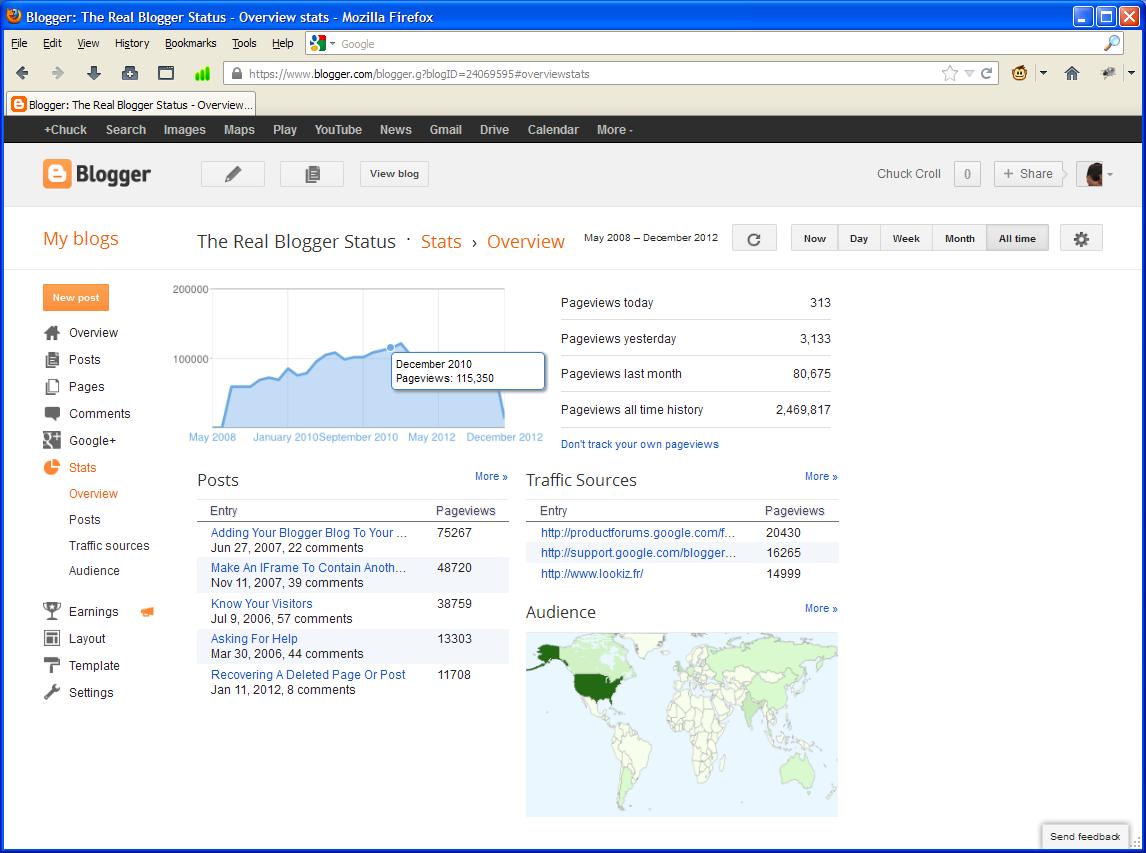
Look at the Stats Overview tab, and the graph at the top of the display.

There's December 2010!
There's January 2012!!
What happened to "2011"?


My suspicion is that it's a deliberate omission, to get the graph to fit in the limited horizontal space. How will they get "All Time" to fit in that space, as the Stats display gets older, and "All Time" covers more years?

That being the case, it should not be that much work to add a little "broken line" symbol in the border, somewhere between "Septermber 2010" and "May 2012". Look how smoothly the line flows, in my graph, right through 2011. What does the graph for your blog show?

Fast forward to 2015, and we'll know the answer.

Life is full of mystery. Why not just deal with this one, and move on?

>> Top

Contact Us

24x7 online , we happy to answer you
tamilcypc@gmail.com

Disclaimer

This Blog and its TUT's are intended for educational purposes only, no-one involved in the creation of this TuT may be held responsible for any illegal acts brought about by this Blog or TuT.


Featured Post

Custom Domains And HTTPS Redirection Code