Latest News

Showing posts with label Custom Domains. Show all posts

Custom Domains And HTTPS Redirection Code

As most of us know, Blogger HTTPS support does not include custom domain publishing.

The advantages offered by HTTPS access are widely advertised - and have led to envy between blog owners who publish to custom domains, and native BlogSpot blog owners proudly advertising their new HTTPS connectivity.

Long ago, we saw possibly malicious code which helps our readers avoid using country code aliases, to read our blogs from an aliased country. Recently, there was dodgy code which blocked HTTPS mode, to read a customised blog.

Now, we have custom code to force HTTPS access, for BlogSpot published blogs.

Along with providing code to help blog owners avoid country local domain aliasing, some marginally helpful hackers are providing code to help blog owners force reader access to HTTPS.

Some blog owners always wanted HTTPS to be used, to access their blog.

Some blog owners wanted their readers always using HTTPS to access their blogs, before forced HTTPS access became an option. They Googled, and found, semi helpful hackers who provide clever code to force the "HTTP --> HTTPS" redirection.

<script type='text/javascript'>
$(document).ready(function() {
  $("a[href^='http://']").each(
    function(){
      if(this.href.indexOf(location.hostname) == -1) {
        $(this).attr('target', '_blank');
      }
    }
  );
  $("a[href^='https://']").each
    function(){
      if(this.href.indexOf(location.hostname) == -1) {
        $(this).attr('target', '_blank');
      }
    }
  );
});
</script>


This is clever code - when only BlogSpot access is involved. When you add BlogSpot to custom domain redirection, it becomes another "404".


Adding this clever code is an excellent solution - until the blog owner forgets about it, and later upgrades to a non BlogSpot custom domain.

With a custom domain published blog, the redirection becomes a problem.

The added code contains no exception to permit custom domain published blogs to remain in HTTP mode. When accessing an otherwise properly setup custom domain published blog, from a reader using the "blogspot.com" URL, this prevents the BlogSpot to domain redirect from operating.

BlogSpot URLs, which should redirect to the HTTP published custom domain URL, instead redirect to a non existent HTTPS URL - and result in another "404". As the custom domain URL becomes more commonly used for a recently published blog, confusion increases when the rarer BlogSpot URL reference is encountered.

My blog has been using the domain URL for months, why is this happening now?

The problem involves dual redirection - to "https:" mode, and to the custom domain.

After painful problem diagnosis, we find the clever redirection code buried in template HTML - and we see that the blog reader is starting from the BlogSpot URL, and using the BlogSpot to domain redirection, to access the blog.

With blog access redirected to "https:" mode, then subsequently to the custom domain URL, the readers sees a "404" - because the custom domain URL is not available as "https:" content.

This problem will become increasingly rarer - but not extinct.

As self caused custom domain victims become rarer, this way of breaking ones own blog will become more obscure - and it's likely that some cases will go, unsolved. This will be similar to the problem of un migrated classic templates, which has increasingly less experienced support.

If you must install unsupported template tweaks into your template - consider the long term effects. Learn to recognise a problem that you have caused, to your own blog.

Not every helper will realise that you have added custom redirection code - and when looking at the problem code, when a problem is reported, will recognise it for what it is. Your problem may remain your problem - at least, until Blogger Engineering completes Blogger SSL integration (may this happen soon).


Some blog owners have added clever HTTP to HTTPS redirection code, acquired from helpful third party providers, installed in the template. When later publishing a blog to a custom domain, this code will prevent proper blog access - and as installed, may not be easily recognised.

https://productforums.google.com/forum/#!category-topic/blogger/bl5W39BKX4U

Troubleshooting Custom Domain Issues

If you are trying to make your custom domain published blog work, see my guide Troubleshooting Your Custom Domain Problems.

If you want to know how to setup a custom domain properly, from the beginning - and avoid the need for Troubleshooting - read Setting Up DNS Addresses For Custom Domains. Avoid the most basic mistakes made - read The Simplicity Of A Custom Domain Setup.

If you just setup your custom domain - and want to minimise the effects of the URL change upon your search engine relationships - read Managing The Migration.

If you're just browsing, then read on - but get a good cup of coffee first. And welcome, to Nitecruzr Dot Net.

Troubleshooting Your Custom Domain Problems

Of the many accessories and features in Blogger, Custom Domain Publishing is possibly the most problematic.

Looking at the Labels index in this blog, I see the Custom Domains label on 363 posts (as of 2015/06/15) - which makes it one of the most heavily labeled single topics here. There are several challenges with diagnosing and resolving a custom domain problem.
  • It has various different causes.
  • It leads to many different symptoms, which can easily be confused for other problems.
  • Its symptoms can be chronic or intermittent- and may be immediate, or may take months to exhibit themselves.
  • It may require resolution by any blog guest, by the blog owner, by Blogger Support, and / or by a third party such as the domain registrar.


As you read this article, click on some of the many links in the text, and read the linked articles.

Please think of this article as the first chapter in a very large book - right now, a book with 363 chapters.


How To Use This Guide

These are the known custom domain publishing diagnoses. Here's a brief, one line summary of the problems, which are discussed, in some detail, farther below. Click on any one, if it looks promising, to jump to the detail discussion.


Domain Purchase Unsuccessful
  • The domain will not be setup. The blog may, or may not, be published to the domain.
  • This will follow use of "Buy a domain".
  • The primary symptoms will vary. We see both "404 Not Found", and "Another blog is already hosted at this address", fairly common for this problem.
  • This will be an issue for newly purchased domains.
  • It will be diagnosed by use of the WhoIs log showing "xxxxxxx.xxx appears to be available", and verified by examination of the Google Checkout logs, and bank account ledger entries.
  • The blog owner generally has to correct a problem with his bank account, then repeat the purchase of the domain.


Only Name Registration Purchased, No DNS Hosting
  • The domain will not be setup, nor the blog published to the domain.
  • This will follow domain registration, purchased from a third party registrar.
  • The primary symptom will be the query "What are the DNS servers for Google?", "I need 2 IP addresses for my domain!", or "I can only change NameServer1, NameServer2 in my domain setup!".
  • This will be an issue for newly purchased domains.
  • It will be diagnosed by the stated symptom, with the blogger confirming the diagnosis by checking the registrar's invoice to see what services were paid for.
  • The blogger will have to arrange for DNS hosting - free or paid - but choose the right DNS hosting service. A free third party DNS hosting service may be useful, in this case.


Domain Addresses Not Defined
  • The blog will not be successfully published to the domain.
  • This will follow domain registration using "Buy a domain".
  • The primary symptom will be "Another blog is already hosted at this address", in the Settings - Basic - Publishing display.
  • This will occur for new custom domains.
  • It will be diagnosed using an excerpted Dig log, for both domain URLs.
  • Here, the blogger will be advised to contact Google Apps Support, for any domain purchase issues.


Domain Ownership Not Verified


Non Google DNS server Part Of Configuration


Domain Addresses Not Properly Chosen


Domain Previously Registered, And Used In Blogger
  • A Blogger blog was successfully published to the domain, at one time - by a different person. It is now not successfully published.
  • This may follow domain registration, purchased from a third party registrar, or using "Buy a domain".
  • The primary symptom will be "Another blog ...", when attempting to publish / re publish the blog to the domain.
  • It will be diagnosed using an excerpted Dig log, for the BlogSpot, and both domain, URLs.
  • It will be resolved using the Custom Domain Reset form - and much patience by the current domain owner.


Domain Registration Expired


Blog Published To Domain, Using Mixed Case URL
  • The blog will be successfully published to the domain, but will not be visible from either BlogSpot or domain URLs.
  • This may follow domain registration, purchased from a third party registrar, or using "Buy a domain".
  • The primary symptom will be a "404 Not Found", when attempting to view the blog using either the BlogSpot or domain URLs.
  • This will, typically, occur for new custom domains, immediately after the end of the 3 Day Transition Period.
  • It will be diagnosed using a RexSwain HTTP Trace set, starting from the BlogSpot URL.
  • It is typically resolved by publishing the blog back to BlogSpot, then re publishing to the correct URL, using all lower case letters.


Blog Published To Domain Root, But Asymmetrical DNS Used
  • The blog will not be successfully published to the domain.
  • This may follow domain registration, purchased from a third party registrar, or using "Buy a domain" - though "Buy a domain" will be far more commonly seen.
  • The primary symptom will be a "404 Not Found", when attempting to view the blog using either the BlogSpot or domain URLs - or the warning "Blogs may not be hosted at naked domains." or "Another blog or Google Site is already using this address.", when trying to publish or re publish the blog to the domain.
  • This will, typically, occur for new custom domains.
  • It will be diagnosed using a RexSwain HTTP Trace set, starting from the BlogSpot URL, and confirmed with a screen print of the Publishing wizard display, taken as the blog owner sees the error message in question.
  • It is typically resolved by publishing to the "www" alias.


Domain Redirected To Google Ad Services, Sites, or Start Page URL


Blog Published Partially, To The Custom Domain URL


Internal Blogger Database Corruption


The Blog And Domain Are In Transition
  • The domain will be setup - but will not redirect. The blog will be published to the domain URL.
  • This will follow use of "Buy a domain".
  • The primary symptom will be seen only by the owner (when properly logged in to Blogger). When clicking on the "View Blog" dashboard button / link, the owner will see an "In Transition" display.
  • This will be a temporary issue, for newly purchased domains, successful purchased.
  • It will be diagnosed using an excerpted Dig log, for the BlogSpot, and both domain, URLs.
  • It will go away, when Transition expires, 72 to 96 hours after successful domain purchase and registration. The blog, and the domain, will then redirect properly.
  • While you wait for Transition to expire, spend time reading what you will want to do, when Transition is complete.


All Issues May Not Be Yet Discussed Here
You could, occasionally, have a problem which is not diagnosed in this Guide - and in that case, please ask for help, politely, in Blogger Help Forum: Something Is Broken.

Before asking for help, you can help the helpers if you have tried some affinity diagnostics or maybe some differential diagnostics - and if you are aware that not all problems may be exclusively caused by Blogger. And have some idea how many possibilities exist, for problems.

And if it's not too late, read Blogger Magic - How To Setup A Custom Domain, and Setting Up DNS Addresses For Custom Domains, before you start.

The Mysterious "Destination" / "Points To" Label

Some blog owners buy domains, for publishing a Blogger blog, and ask about how to address the domain.
What address do I use for "Points to"?
Other owners may ask a similar question, referencing "Destination" or maybe "Target".

There is no real difference, between all 3 labels. "Destination", "Target", and "Points to" all refer to the same DNS address value.

To compound the confusion, 4 different addresses are required, when addressing a Blogger custom domain root.

Defining the DNS servers used by the domain root ("naked domain") requires 4 address records - and the labels used, in the zone editor, will vary from registrar to registrar.

We know of 3 different labels, used by Blogger custom domain instructions.

The referential Blogger document How do I use a custom domain name for my blog? uses 3 labels to identify the 4 name servers, which are provided by Google. Blogger uses the triplet label "Destination, Target, or Points to" as their example.

Google provides 4 name servers, to give us multiple redundancy.

Google provides four mutually redundant individual servers, each responding to a specific IP address - for custom domain clients to address the domain root, in a round robin sequence.

There are 4 name servers provided by Blogger, to address a custom domain root.


Each domain root name server entry uses 2 important label values ("Name, Label, or Host" - and "Destination, Target, or Points to").

Each label may have 1 of 3 values, depending upon the zone editor provided by the registrar.

Here is the Dig Log, for the domain root. Look at the 2, 4, 6, and 8, in the 4 address entries.

mydomain.com. 3600 IN A 216.239.32.21
mydomain.com. 3600 IN A 216.239.34.21
mydomain.com. 3600 IN A 216.239.36.21
mydomain.com. 3600 IN A 216.239.38.21

In the GoDaddy zone editor, you'll see these entries depicted as

  Host   Points to           TTL
  @      216.239.32.21    1 Hour
  @      216.239.34.21    1 Hour
  @      216.239.36.21    1 Hour
  @      216.239.38.21    1 Hour

The GoDaddy zone editor uses the labels "Host" and "Points to".

Similar labels ("Name", "Label" and "Destination", "Target") are used by various other registrars, in their own zone editor.

A Zone Editor display, showing the base DNS addresses, for GoDaddy.

Here is the display, used by GoDaddy, for "nitecruzr.co.uk".


Here is the zone editor display, as provided by GoDaddy.

Do you see the 4 address records, beneath "Points to"?


The labels in the address records differ, from registrar to registrar. The "Name, Label, or Host" address values (here, shown as "@") will differ, from registrar to registrar - but the "Destination, Target, or Points to" address values will not differ. A properly addressed domain will have the same 4 "Destination, Target, or Points to" address values, as every other properly addressed domain.

mydomain.com. 3600 IN A 216.239.3n.21

Each address will have one of four values for n: 2, 4, 6, or 8.

Complementing "Destination, Target, or Points to", we have another label set.

Complementing the 3 "Destination, Target, or Points to" label address values, for addressing the 4 name servers provided by Google, we have a similar set of 3 "Name, Label, or Host" label address values.

Addressing "Name, Label, or Host" is somewhat simpler - as all 4 entries are identical to each other, for any domain root address entry.

The Blogger instructions, like the GoDaddy zone editor, use "@", when addressing the domain root. The zone editor value used, however, may differ from registrar to registrar.

Any blog owner, wishing to have a working custom domain, needs to understand how to setup a domain for the registrar involved.

The end result.

Both the "Name, Label, or Host" - and the "Destination, Target, or Points to" - label triplets are only examples. Other unidentified registrars may use other labels.

Considering the Blogger instructions, and the terminology required, Blogger Help Forum: Get Help with an Issue will not soon run out of blog owners, requesting assistance for making their custom domains work.


Some #Blogger blog owners, in the process of setting up their blogs using custom domain publishing, find that labels "Name", "Label", or "Host" - and "Destination", "Points to", or "Target" - are only examples, in the Blogger Help document.

There is no attempt at standardisation, used by the thousands of different Internet registrars, in their dashboards (aka "zone editors").


https://productforums.google.com/forum/#!category-topic/blogger/kMDo0O1xtDM

Custom Domain Migration, And Redirection Blocking

We see occasional frustration, in Blogger Help Forum: Get Help with an Issue, involving broken or unreliable custom domains.
I setup the Custom Domain properly, following the Google directions.

For some of my readers, my custom domain is not opening. I can see it is going in an infinite loop in the browser - and after a long time, it's throwing errors. My domain is setup, properly. Why do I have to deal with this?
And we will investigate - and in many cases, we find the domain is setup properly.

Some custom domain published blogs have problems, which have nothing to do with the domain setup.

Some custom domain problems involve custom code, added to the template, long ago.

Not everybody is in favour of the ongoing Blogger efforts to convince blog owners to force their readers to use HTTPS / SSL, in blog access.

A number of hackers are making their websites popular, by providing code that lets blogs block forced HTTPS access - just as they provided code that blocked local country domain redirection. Some blog owners add this dodgy code, to their blogs.

This hacking lets blog owners publish their blogs, and use accessories and gadgets that only support HTTP access. Unfortunately, with third party code, you get what you get.

Some third party code, which blocks HTTPS blog access, works OK - for a while.

When a blog is published to a custom domain, redirection to "blogspot.com" causes a redirect loop - or a security check.

<script type='text/javascript'>
var blog = document.location.href.toLowerCase();
if (!blog.match(/\.blogspot\.com/)) {
  blog = blog.replace(/\.blogspot\..*?\//, ".blogspot.com/ncr/");
  window.location.replace(blog);
  }
</script>

This is clever code, seen some time ago when used to block country local domain redirection. Then, as now, some blogs might be deleted or locked as malware hosts - or the blogs would become intermittently inaccessible.

Is the unreliability appropriate? You can add what code you like, to your blog. Eventually, what you add may cause you problems.


Some #Blogger blog owners add clever code, to block HTTPS Redirection, to their blogs. This is the same hacker provided code, used long ago to block local country domain redirection.

Like country domain redirection, the code added may work fine, for a while. Eventually, the blog will be deleted / locked for malware hosting - or will start throwing 404 errors and similar confusion.


https://productforums.google.com/forum/#!category-topic/blogger/71k8xOXxByI

Custom Domain Publishing And Private Blogs

We see an occasional report in Blogger Help Forum: Get Help with an Issue, about custom domain publishing.
My readers can't view the blog - they get a redirection count error!

DNS analysis shows a properly setup domain. When we try to examine the blog, we see a private blog notice - or we are required to login.

But why a private blog, using a custom domain?

The purpose of publishing to a custom domain is to increase readership - by making a blog more visible, using a non BlogSpot URL.

A private blog has limited readership, based on permissions provided by the owner. The need to make a blog private conflicts with the need to increase reader population.

Besides the functional conflict, there's a second problem with combining a custom domain published blog, and access by invitation. Both the custom domain redirection, and the private blog redirection involve interstitial code.


This is a private blog. Combine this, and a custom domain redirection - and you get trouble.


A potential blog reader, when accessing the blog by the BlogSpot URL, will redirect to the domain URL - and then to the access checking interstitial. Some browsers will interpret this as a possible security issue, and cite

Too many redirections!

In other cases, the two redirections may lead to a redirect loop - and the reader will see a white screen of death.

What ever the result - "Too many redirections", or a redirect loop, the potential reader will never see the blog.

If you want to publish a blog, and limit reader access by invitation, you're better off publishing to BlogSpot. If you want to use a non BlogSpot URL, a public blog makes sense.


You are allowed to publish a #Blogger blog with a designated reader population - and you're allowed to publish a blog to a non BlogSPot URL.

You can publish a private blog to a custom domain, if you wish - but this is not recommended. Learn why combining limited access with a non BlogSpot URL is not a good idea.

https://productforums.google.com/forum/#!category-topic/blogger/5IUByvxKYeg

Blogger Custom Domains, And Publishing Spam Control

Some blog owners want to know why custom domain published blogs are subject to daily activity spam control limits. We see the occasional query, in Blogger Help Forum: Learn More About Blogger.
Does the 50 posts / day limit apply to all blogs that use the Blogger platform - or only for these hosted on BlogSpot?
With Blogger, all blogs are subject to a daily publishing activity limit - pages and posts, combined.

Some blog owners question the need to control post limits, for custom domain published blogs.

There are a lot of WordPress blogs, posting more or less just the short feeds of others blogs. That seems to be impossible if you use Blogger.

Using WordPress as an example does make Blogger seem overly strict. However, Blogger custom domain publishing is not the same as WordPress private domain publishing.

All Blogger blogs are hosted on Google servers.

With Blogger, all blogs - including those published to custom domains - are hosted on Blogger / Google servers. Blogger limits publishing activity - and scans for malware, porn, and spam - based on server content.

One of the problems with Blogger blogs that were hosted using FTP publishing - which was similar to WordPress private blogs - involved problems with content control. It simply was not possible to prevent hacking, porn, and spam on remote, non Blogger servers - whether or not Blogger blogs were involved.

WordPress blogs published to private domains are hosted on private servers.

With WordPress, blogs published to private domains are hosted on private servers. WordPress avoids limits and abuse scanning, on private domain published blogs, not only because they don't want to - they can't control or scan private servers.

WordPress private blogs use the Wordpress engine, for publishing static websites onto privately owned and controlled remote servers. This is how Blogger FTP Publishing worked, long ago.

All Blogger blogs are subject to daily posting limits.

Thanks to imaginative domain publishing techniques, it's not possible, with 100% certainty, to identify what Blogger blogs might use non BlogSpot URLs. Blogger blogs published to custom domains simply have an alternate, non BlogSpot URL.


The much hated CAPTCHA.


All Blogger blogs - including this one - are subject to daily page / post publishing limits.

When the limit is exceeded, we have the much hated CAPTCHA. This encourages each of us to spend time publishing informative, interesting, and unique content.

Publish quality - not just quantity.


All #Blogger blogs - not just those published to BlogSpot - are subject to daily publishing limits. Some blog owners would like custom domain published blogs to be exempt from abuse control - including the daily publishing activity limit.

It's not likely, however, that Blogger will relax daily activity limits - custom domain or not.

https://productforums.google.com/forum/#!category-topic/blogger/hW5xai9FqH0

Custom Domain Setup, And The Blogger Instructions

Custom domain setups continue to confuse blog owners - and lead sometimes to frustration, expressed in Blogger Help Forum: Get Help with an Issue.
When I am trying to set up a custom domain for my new blog, I'm not getting the 2nd CNAME Record, but the settings get saved.
In some cases, the domain may be operational - and other times, the domain will be broken, and no corrective instruction is provided.

The details in the instructions, Blogger Help: How do I use a custom domain name for my blog?, are misleading - and have resulted in broken domains.

The Blogger instructions are confusing.


5. Go to your domain registrar's website and locate the DNS (Domain Name System) settings in the control panel.

Not a lot of details, there.


10. Before you move onto the final step, wait about an hour for your DNS settings to activate. If you attempt the final step before your settings are activated, we'll let you know with a warning message.

All registrars don't use "3600" second TTL.


That's 2 examples of possible problems.

Publishing a blog to a custom domain is so much easier - and produces more reliable results - if you follow basic principles.

  • Learn to use your registrar's zone editor.
  • Learn to read a Dig log.
  • Setup the DNS addresses, for your domain.
  • If necessary, add domain ownership verification.

Learn to use your registrar's zone editor.

The registrar dashboard / zone editor is the portion of the registrar's website, that is created to let you, the domain owner, setup your own domain.

The zone editor is unique, for every different registrar - just as every website is different. One of the signs of uniqueness is hinted, by Blogger.

Each CNAME is composed of two parts - Name, Label or Host and Destination, Target or Points to.

These two (only two) terms here refer to the most essential details, in the zone editor, that make your domain operational. The two details have no consistent names - so we use examples.

The first CNAME is the same for everyone, Name being "www" and Destination "ghs.google.com."

That one sentence is the most essential, for all domains. It looks so simple - but it's so easy to get it wrong. Not every blog owner will see "Name" and "Destination" in the zone editor display. This leads to many imaginative - and wrong - alternatives.

Each registrar labels their zone editor, as they see fit. I've seen other terms used, in addition to the 6 implied. Both "Name, Label or Host" and "Destination, Target or Points to" are merely three examples, for each of these two essential elements.

These details are only hinted, by the Blogger instructions.

  1. Go to your domain registrar's website and locate the DNS (Domain Name System) settings in the control panel.
  2. Now it's time to enter the CNAMEs. Where it says Name, Label or Host simply enter "www" and list ghs.google.com as the Destination, Target or Points to.

Learning how to look, in the zone editor, is much more reliable than being told what to look for.

Learn to read a Dig log.

Compared to the confusion behind the registrar's zone editor, a Dig log is simplicity.

There are three basic DNS configurations, which produce a reliable domain for publishing a Blogger blog. 99.99% of all blog owners will use only one of the three.

ourdomain.com. 3600 IN A 216.239.32.21
ourdomain.com. 3600 IN A 216.239.34.21
ourdomain.com. 3600 IN A 216.239.36.21
ourdomain.com. 3600 IN A 216.239.38.21
www.ourdomain.com. 3600 IN CNAME ghs.google.com.

This is the asymmetrical DNS address configuration. Excepting one known variation, the asymmetrical configuration - with no options - is most reliable.

Setup the DNS addresses, for your domain.

As long as you have access to the zone editor, and understand the above issues - "Learn to use your registrar's zone editor" and "Learn to read a Dig log" - the rest will fall into place.

Unfortunately, not everybody has zone editor access. Similar to Blogger dashboard access, registrar dashboard access is not always a done deal.

Even having zone editor access, the Blogger instructions can mislead.

  1. Optional: You can also enter A-records, which links your naked domain (example.com) to an actual site (www.example.com). If you skip this step, visitors who leave off the "www" will see an error page.
  2. Optional continued: After completing Step 8, enter your domain name in the format example.com, and list the I.P. addresses shown below in the "A" section. You'll need to create four separate A-records which point to four different Google IPs.

Many problems, reported in the forums, indicate that using the domain root properly is (should be indicated as) a necessity.


Once again, the domain root, configured properly, should not be suggested as an option.

  1. Before you move onto the final step, wait about an hour for your DNS settings to activate. If you attempt the final step before your settings are activated, we'll let you know with a warning message.

All registrars don't use one hour TTL.

Be careful of the TTL setting. Unless you know better, stick with the registrar's TTL setting - and try to understand the effects of TTL latency.

If necessary, add domain ownership verification.

Returning to the Blogger instructions, we see

The second CNAME is particular to your blog and your Google Account, and is therefore different for each person.

Not every blog owner will see the second CNAME - whether or not the domain is properly setup.

The Blogger dashboard Publishing wizard only displays the "Error 12", and the second CNAME, under specific conditions. In some cases, the blog will be published to the domain - and the second CNAME will not be provided.

You may not see the instructions for the second "CNAME", until your base addresses are right. If you need the second "CNAME", the "Error 12" display will provide details - when the base addresses redirect properly. If the blog publishes, a second "CNAME" is not necessary.

That is my suggestion. Get the addresses right, before you start - then publish to the domain URL.

If the blog publishes to the domain, and the addresses are wrong, the domain will be broken - or unreliable.

The bottom line.

It's good to have instructions, they suggest the need for proper domain setup technique. Just don't be surprised if following them blindly gives you a broken domain - and an offline blog.

If you are lucky, the blog will appear offline immediately after using the Publishing wizard - and you will know that there is a problem to be fixed. Other times, you (or some readers) might not realise a problem until months or years later.

In the latter case, we'll see you, one day, in Blogger Help Forum: Get Help with an Issue.
I published my blog to my private domain, last month - and the blog pageviews have been in the crapper, ever since!


The instructions supplied by #Blogger, for setting up a custom domain published blog, can be misleading. Blindly observed, they can lead to an immediately offline blog - or to a blog that is online for some, and intermittently offline for others.

https://productforums.google.com/forum/#!category-topic/blogger/Jv0fT5cws3U

Don't Always Blame Blogger, With Your Blog Down!

Some of my favourite problem reports, in Blogger Help Forum: Get Help with an Issue, are about inconsistent blog online status.
It was fine yesterday. Why is it down, now?
and
I see the blog, just fine! Why are some of my readers complaining?
and
I can access it, using my phone! Why is Blogger down, on my home computer?
and
The registrar tells me everything is OK!
Whenever I see the latter report, I know exactly where to start.

Particularly when I see the latter symptom, I know exactly where to start.

The registrar tells me everything is OK!

The "registrar says" is a frequent indicator of the problem. I'm not naming names, but the initial "G" (and not "Google") is very frequently involved, in this case.

So, I start with a Dig log, for the domain. And 99% of the time, that's all that is needed.

Bogus DNS addresses are a very commonly seen diagnosis, in so many of these cases. For 99.99% of the blogs, published to a custom domain, there is simply no effective substitute for the "Asymmetrical DNS" setup, provided long ago.

  • Maybe the blog will be up for you, and some would be readers - but others will be seeing the "404".
  • Maybe it was fine, yesterday - and today it is suggesting spam and viruses.
  • It will only work, for some people, some of the time. That is the only constant.

So you call the registrar - and they tell you that it has to be Blogger, because they have no problem accessing it. But the registrar is part of the problem.

The righteous address setup.

mydomain.com. 3600 IN A 216.239.32.21
mydomain.com. 3600 IN A 216.239.34.21
mydomain.com. 3600 IN A 216.239.36.21
mydomain.com. 3600 IN A 216.239.38.21
www.mydomain.com. 3600 IN CNAME ghs.google.com.

The domain root uses 4 x "A" addresses, accessed in a round robin sequence. And the published URL uses a single "CNAME", resolved using a complex name server array. With both domain root and "www" alias properly addressed, your blog has much better chance of being consistently and reliably accessed.

One possibly righteous address setup.

One Blogger Engineer recommended a modified version of the asymmetrical DNS setup, to be used by 1&1 customers. Only time will tell if this setup is reliable. I have seen several 1&1 customers, this year, suggesting that this is not long term reliable.

mydomain.com. 3600 IN A 216.239.32.21
www.mydomain.com. 3600 IN CNAME ghs.google.com.

Some spurious address setups.

Spurious address setups are unlimited, in variety. Here are a random 3 examples, from recent forum history.

Error when adding domain

https://productforums.google.com/d/topic/blogger/WvW2yZaS-FI/discussion

When i am trying to adding the domain it shows the error
Whoops, that's an error! (bX-6g9yx1)

socialsfriend.com. 600 IN A 184.168.221.33
www.socialsfriend.com. 3600 IN CNAME socialsfriend.com.

Blogger appears to be detecting this setup as a problem - and throws a bX code, to indicate a problem.

Mobile Redirection Failure

https://productforums.google.com/d/topic/blogger/rAJgN8pYdPw/discussion

When I am on mobile on google chrome (only browser I tested).

chartlearning.com does not redirect to www.chartlearning.com on mobile.

chartlearning.com. 600 IN A 50.63.202.10
www.chartlearning.com. 3600 IN CNAME ghs.google.com.

This blog is online - and visible, using broadband - but no domain root redirection, for mobile browsing. "50.63.202.10" is not a Blogger / Google name server, and won't provide reliable redirection.

Can't publish my blog

https://productforums.google.com/d/topic/blogger/ibGqKLWXhO8/discussion

When I entered the "eac-leadership-consulting.com" domain in 3rd-party domain settings, I did not receive an error. I did not see the 2 CNAME records.

eac-leadership-consulting.com. 600 IN A 50.63.202.50
www.eac-leadership-consulting.com. 3600 IN CNAME eac-leadership-consulting.com.

This blog published - but ownership verification did not provide the required second "CNAME".

The bottom line.

There simply is no substitute for righteous DNS addressing, for custom domain publishing. Publishing to a custom domain is not a productive activity, if you cannot follow instructions.


The ability to publish a #Blogger blog to a non BlogSpot URL has been provided, for almost 10 years. Some blog owners still cannot setup the domains properly - and remain oblivious, when a problem arises.

Learn why there is one effective DNS address setup, for custom domain publishing.


If you want a reliable custom domain, this is the address choice.

Changing Your Custom Domain - The Next Chapter

We see some blog owners deciding to change their custom domain URLs - and discovering an unexpected limitation, in re indexing the blog, under the new URL
I received email from Google, advising that my previous domain is pulling up a number of 404 errors. I've noticed that these are for individual blog posts.
When you change one custom domain to another, you may not see the domain re indexed, transparently.

Changing a Blogger blog, from one custom domain to another, is a reasonably simple project - if you're able to plan the change.

A domain change should involve simply re indexing the blog.

A simple custom domain name change involves republishing the blog, under a new domain. Retaining readers, and search engine access, requires slightly more work.

Renaming a custom domain - if it involves a BlogSpot rename - becomes significantly more complicated.

Renaming a custom domain - and having the individual post URLs in the old domain working, after the change - will require slightly more effort, than any of the above requirements.

With GoDaddy, using specific settings, you may be able to forward post URLs.

In one forum topic, a domain owner was able to forward a domain, using instructions provided by GoDaddy - so individual post URLs redirect properly.

In the GoDaddy domain settings for the old (original) custom domain, activate Domain Forwarding.

  1. Set the "Forward to:" address to the new custom domain.
  2. Choose the Redirect Type as "301 Permanent".
  3. Choose the Forward Settings as "Forward only".

This may not be the effect seen, by all blog owners. Not all registrars will provide this ability.


This is the GoDaddy DNS wizard, as of 2016.

If your domain was not registered by GoDaddy, you will have a different wizard - and most likely, ""Forward only" will be a different option. Maybe, "Forward without masking" will be a useful description.


Blogger does not support redirection, from blog URL to blog URL.

Blogger does not support redirection, between BlogSpot or custom domain URLs - as transparent redirection would simply encourage spam activity. Any redirection, from the old custom domain, has to be provided by the domain registrar.

Most registrars provide simple DNS forwarding, from one domain to another - if you are able to pay for both domains, simultaneously. Generally, most registrars will setup forwarding, from the old domain to the new published blog URL.

Not all blog owners may get the redirection, for their domain, correct.

With a domain forwarded to the published URL - using most registrar provided instructions - readers who click on the URL to a specific post, using the old domain URL, will find themselves unexpectedly viewing the blog home page, under the new domain. This will cause some confusion.

Search engine bots won't find a specific blog post, under the new domain.

A search engine bot, indexing a specific post, using the old domain URL, will be redirected to the blog home page, under the new domain URL. This will not enhance indexing of the blog.

Some search engine bots may report this as a "404 Not Found" - and blog reputation will suffer.

Here's an example of the problem.


The specific post URL ("www.chloellio.co.uk/2016/05/ fashion-river-island-plus.html") redirects to the main page ("www.chloeincurve.com").


For most obvious benefit, "www.chloellio.co.uk/2016/05/fashion-river-island-plus.html" should redirect to "www.chloeincurve.com/2016/05/fashion-river-island-plus.html" - not to the blog main page "www.chloeincurve.com".

Let's look at an HTTP trace. This shows an individual post in the blog, with forwarding provided by GoDaddy.

http://www.rexswain.com/cgi-bin/httpview.cgi?url=http://www.chloellio.co.uk/2016/05/fashion-river-island-plus.html&uag=Mozilla/5.0+(X11%3B+CrOS+armv7l+7978.66.0)+AppleWebKit/537.36+(KHTML,+like+Gecko)+Chrome/50.0.2661.91+Safari/537.36&ref=http://www.rexswain.com/httpview.html&aen=&req=GET&ver=1.1&fmt=AUTO

Sending request:

GET /2016/05/fashion-river-island-plus.html HTTP/1.1
Host: www.chloellio.co.uk
User-Agent: Mozilla/5.0 (X11; CrOS armv7l 7978.66.0) AppleWebKit/537.36 (KHTML, like Gecko) Chrome/50.0.2661.91 Safari/537.36
Referer: http://www.rexswain.com/httpview.html
Connection: close
• Finding host IP address...
• Host IP address = 79.170.40.4
• Finding TCP protocol...
• Binding to local socket...
• Connecting to host...
• Sending request...
• Waiting for response...
Receiving Header:

HTTP/1.1·302·Found
Date:·Sun,·15·May·2016·17:17:57·GMT
Server:·Apache/2.2.24·(Red·Hat)
Location:·http://chloellio.co.uk/2016/05/fashion-river-island-plus.html

http://www.rexswain.com/cgi-bin/httpview.cgi?url=http://chloellio.co.uk/2016/05/fashion-river-island-plus.html&uag=Mozilla/5.0+(X11%3B+CrOS+armv7l+7978.66.0)+AppleWebKit/537.36+(KHTML,+like+Gecko)+Chrome/50.0.2661.91+Safari/537.36&ref=http://www.rexswain.com/httpview.html&aen=&req=GET&ver=1.1&fmt=TXT

Sending request:

GET /2016/05/fashion-river-island-plus.html HTTP/1.1
Host: chloellio.co.uk
User-Agent: Mozilla/5.0 (X11; CrOS armv7l 7978.66.0) AppleWebKit/537.36 (KHTML, like Gecko) Chrome/50.0.2661.91 Safari/537.36
Referer: http://www.rexswain.com/httpview.html
Connection: close
• Finding host IP address...
• Host IP address = 79.170.40.4
• Finding TCP protocol...
• Binding to local socket...
• Connecting to host...
• Sending request...
• Waiting for response...
Receiving Header:

HTTP/1.1·302·Found
Date:·Sun,·15·May·2016·17:17:58·GMT
Server:·Apache/2.2.24·(Red·Hat)
Location:·http://www.ChloeInCurve.com

http://www.rexswain.com/cgi-bin/httpview.cgi?url=http://www.ChloeInCurve.com&uag=Mozilla/5.0+(X11%3B+CrOS+armv7l+7978.66.0)+AppleWebKit/537.36+(KHTML,+like+Gecko)+Chrome/50.0.2661.91+Safari/537.36&ref=http://www.rexswain.com/httpview.html&aen=&req=GET&ver=1.1&fmt=TXT

Sending request:

GET / HTTP/1.1
Host: www.ChloeInCurve.com
User-Agent: Mozilla/5.0 (X11; CrOS armv7l 7978.66.0) AppleWebKit/537.36 (KHTML, like Gecko) Chrome/50.0.2661.91 Safari/537.36
Referer: http://www.rexswain.com/httpview.html
Connection: close
• Finding host IP address...
• Host IP address = 74.125.28.121
• Finding TCP protocol...
• Binding to local socket...
• Connecting to host...
• Sending request...
• Waiting for response...
Receiving Header:

HTTP/1.1·200·OK(CR)

<meta·content='blogger'·name='generator'/>
<link·href='http://www.chloeincurve.com/favicon.ico'·rel='icon'·type='image/x-icon'/>
<link·href='http://www.chloeincurve.com/'·rel='canonical'/>
<link·rel="alternate"·type="application/atom+xml"·title="ChloeInCurve·-·Atom"·href="http://www.chloeincurve.com/feeds/posts/default"·/>
<link·rel="alternate"·type="application/rss+xml"·title="ChloeInCurve·-·RSS"·href="http://www.chloeincurve.com/feeds/posts/default?alt=rss"·/>
<link·rel="service.post"·type="application/atom+xml"·title="ChloeInCurve·-·Atom"·href="https://www.blogger.com/feeds/5573572064729110417/posts/default"·/>
<link·rel="me"·href="https://www.blogger.com/profile/03895481660022671513"·/>
<link·rel="openid.server"·href="https://www.blogger.com/openid-server.g"·/>
<link·rel="openid.delegate"·href="http://www.chloeincurve.com/"·/>

Even if the domain, redirected to the new domain home page, does not generate a "404", blog reputation will not benefit. An individual post, will not be indexed immediately, when hidden behind the home page.

Not all registrars will help you change domain URLs - and retain post URLs.

If you are going to change custom domain names - and transparently redirect readers and search engines, you will need the extra effort, as described above.

Alternately, simply forward the domain, to the published Blogger URL (generally, the "www" domain host) - then concentrate on getting the blog re indexed, under the new URL. Once the blog is completely indexed under the new domain URL, people won't bookmark the old domain - and the new domain URL will be the reference, for the blog. That's what you want, at the end of the day.

Your readers will see the home page of the blog, when clicking on individual posts, indexed under the old domain URL. Then add a Featured Post, mentioning the domain change - and maybe setup one or both blog searches, for reader convenience.


It's possible to redirect a #Blogger blog, as published under a custom domain, to a new domain. It's not always possible to transparently redirect an individual post URL, to the new domain, however.

If you change your custom domain, you may have to expect some problems from readers and search engines.

https://productforums.google.com/d/topic/blogger/ZiozKZOS07Q/discussion

https://productforums.google.com/d/topic/blogger/9rTL7U2ZMvU/discussion

https://productforums.google.com/d/topic/blogger/Yd5qUg77wUw/discussion

The DNS TTL Setting Is Chosen By The Registrar

Some blog owners, publishing their blog to a custom domain, wonder about the mysterious TTL setting for the domain.
What is "3600"? Why do I see "7200" in my Dig log?
and
Why do I have to wait 8 hours, after changing my DNS addresses?
DNS latency (aka "TTL") is not understood, by many blog owners. A mistake in setting TTL can cause anger and frustration.

"Time To Live" aka "TTL" is a registrar individual setting, that is used for providing proper performance from the registrars name servers and network.

TTL controls caching of the DNS addresses, used to access your domain.

TTL indicates how long a DNS address will remain in cache, on a computer, before that computer requests an updated value. It's an essential (but obscure) component, in setting up a custom domain.

Since you're reading this blog, your computer has the address of this blog in cache - and won't be requesting an update, until "TTL" for "blogging.nitecruzr.net" expires. GoDaddy, the registrar for "nitecruzr.net", uses "3600" seconds, or 1 hour TTL.

Your computer probably uses the nameservers provided by your ISP - and your ISPs nameservers get updates from the nameservers provided by GoDaddy. Changes to "nitecruzr.net" go from Google, to GoDaddy, to your ISP, to your computer - and TTL applies to each DNS cache.

A typical Dig log, for a domain with a low TTL value.

Look at a Dig log extract, for "nitecruzr.net".

http://www.digwebinterface.com/?hostnames=nitecruzr.net%0D%0Ablogging.nitecruzr.net&type=A&useresolver=8.8.4.4&ns=auth&nameservers=

nitecruzr.net. 3600 IN A 216.239.32.21
nitecruzr.net. 3600 IN A 216.239.34.21
nitecruzr.net. 3600 IN A 216.239.36.21
nitecruzr.net. 3600 IN A 216.239.38.21
blogging.nitecruzr.net. 3600 IN CNAME ghs.google.com.

You set the TTL, for each individual DNS address, when you setup your domain. The registrar provides a recommended TTL - but most registrars let you select a different setting, within a given range.

A lower TTL ("600" seconds or 10 minutes) provides faster refresh after a change is made - but puts more load on the registrars name servers, and requires a more responsive network.

A higher TTL ("7200" or 2 hours) provides slower refresh - and puts less load on the registrars name servers. And when a change is made, by Google, a higher TTL can cause problems.

If you don't understand DNS, you will be better off not changing from the registrar recommended setting. Some registrars won't even have a TTL setting, in their zone editor - and others may hide it, behind an "Advanced" menu or similar.

If you generate a Dig log for your domain, you'll see the TTL settings for your addresses.

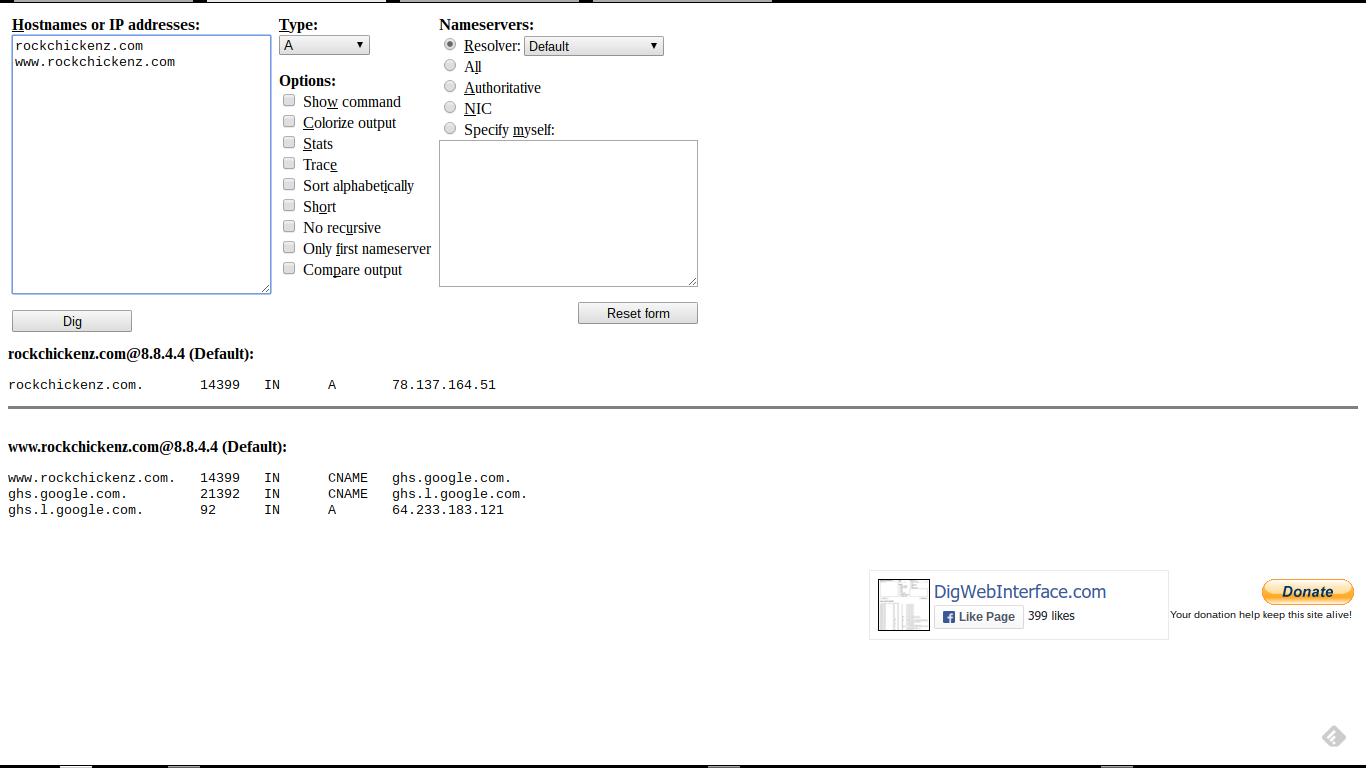
A typical Dig log, for a domain with a high TTL value.

Look at a Dig log, for "rockchickenz.com".


Here, the current DNS addresses (correction pending).


Here, we see a TTL of "14400" (displayed as "14399") - or 4 hours.


rockchickenz.com. 14399 IN A 78.137.164.51
www.rockchickenz.com. 14399 IN CNAME ghs.google.com.

For best results, we suggest that you wait 2 x TTL, after making DNS changes.

I recommend waiting 2 x "TTL", after making any DNS changes, before acting from those changes. Having diagnosed the painful "Another blog ..." domain database corruption, too many times, I suggest this whenever possible.

After you correct the addresses, please wait 8 full hours (2 x "14400" seconds) before continuing. This will let all DNS servers on the Internet receive the corrected addresses.

In many cases, TTL will be "3600" or "1 hour" - and with a typical forum diagnostic session taking several hours between posts, a one or two hour TTL is transparent to the forum discussion.

With domains using 4 hour TTL, suggesting that the blog owner wait 8 full hours after making the change, before re publishing the blog to the domain, makes sense. And a 2 full days, for "86400" seconds, makes even more sense.

And getting a righteous DNS address complement verified - before re publishing - makes the most sense.


DNS TTL latency, which affects accessibility of every #Blogger custom domain published blog, is not understood by many blog owners. To provide a stable domain - and a more visible blog after it's published to a custom domain - every blog owner should understand this obscure detail.

Blogger Magic - The Custom Domain Root Redirect

When you setup a custom domain, for a Blogger blog, the DNS addresses are the most important issue.

A close second in importance, to righteous DNS addressing, is redirecting the domain root to the published URL. We see frequent problem reports, in Blogger Help Forum: Get Help with an Issue.
Why does my domain only work, with the "www" in the address?
The domain root provides a backup to the published URL, in many domain setups. If the domain root is not redirected, and DNS for the "www" or other published alias is down, the domain is down.

With the proper DNS addresses in place, redirecting the domain root is a very simple process.

Start from Settings - Basic.


Start from the dashboard Settings - Basic page.


Click on "Edit" in the Publishing "Blog Address" wizard.


With this blog, I have the option to select "Redirect nitecruzr.net to blogging.nitecruzr.net."


You can only redirect the domain root - no virtual hosts.

Generally, you would publish to "www.mydomain.com" - then you would have the option to "Redirect mydomain.com to www.mydomain.com".

Note that you can only redirect the domain root - even if you publish to a virtual host, such as "www.blog.mydomain.com". "blog.mydomain.com" and www.blog.mydomain.com" are separate hosts - and cannot be aliased.

Whatever you have, the option will work best, when you start with righteous DNS addresses.


Given righteous DNS addresses, publishing a #Blogger blog to a custom domain will produce a more stable blog, with the domain root redirected to the published URL. As the blog owner, you need to be sure to select the redirect option.

Contact Us

24x7 online , we happy to answer you
tamilcypc@gmail.com

Disclaimer

This Blog and its TUT's are intended for educational purposes only, no-one involved in the creation of this TuT may be held responsible for any illegal acts brought about by this Blog or TuT.


Featured Post

Custom Domains And HTTPS Redirection Code