Latest News

Showing posts with label Browser. Show all posts

Reader Zoom Level Affects Screen Space Needed

I have suggested that properly sizing the Jump Break and Title sections of each post is an important decision, when publishing a post in your blog.

Publishing this blog, using carefully sized post title and jump break sections, allows me to consistently publish posts, with maximum detail visible in main page view - and with the "Read more" link visible.

Potential readers may read a post in this blog - instead of returning to a SERP, and reading another blog. This affects a key reader retention metric, the "bounce rate".

All of that considered, sizing of the introductory post sections won't always produce predictable results.

Reader zoom level is a semi random factor, which makes blog section sizing less predictable than one would wish, when trying to increase reader retention.

I size my posts using "100%" zoom, in the Chrome browser. This may, or may not, produce the same effect, for readers using Edge / Internet Explorer, Firefox, or any other browser. And the differing browser will not be the only varying factor.

All of these details can affect zoom level, screen space requirements, and reader retention - for any different blog. Here it is helpful for the blog owner to know about the typical reader.

  • Display screen size.
  • Reader age.
  • Multi tasking activity.
  • Tech interest level.

Display screen size will affect how the blog sections look, to each reader.

Browser choice is not the only variation, that can affect screen space and blog section display sizes.

Reader display screen size used is a detail, that I cannot control. The computer on which I compose most posts has a 6" high screen. A second computer, that I use from time to time, has an 8" high screen. The second computer, even at a 125% zoom level, still displays more post content in one screen page.


This post (in main page view) displayed, at 100% zoom, on an 6" vertical display.


Let's compare this post, displayed at several zoom levels.

Here's this post, in the individual post page display - without Jump Break. See how it looks, zoomed in various font sizes. Note that here I use a maximised browser window, though some readers will resize the browser window to fit the blog content.
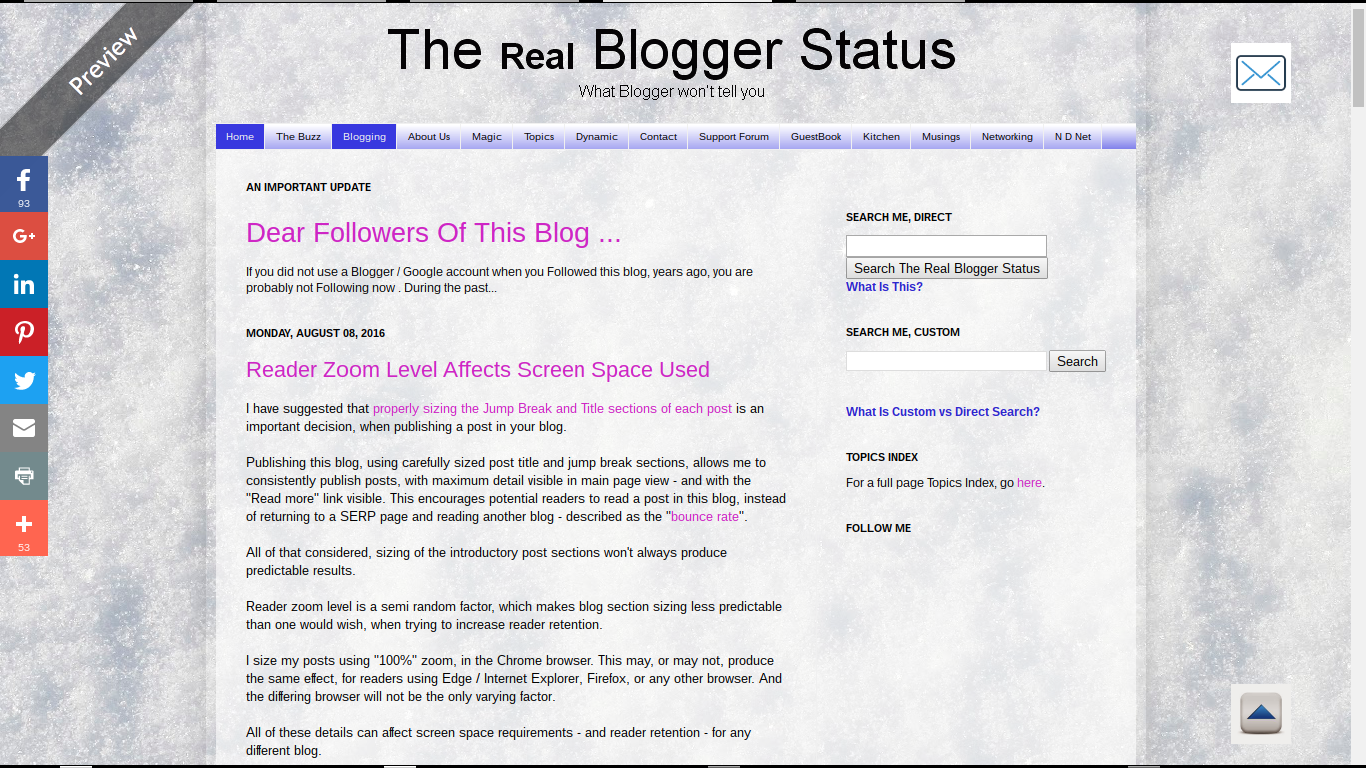

This post (in Preview mode) displayed, at 100% zoom, on an 6" vertical display.


This post (in Preview mode) displayed, at 100% zoom, on an 10" vertical display.


This post (in Preview mode) displayed, at 75% zoom level.


Smaller zoom is more likely to be used by people with better eyesight - using better resolution and more expensive computers, and smaller browser windows.


This post (in Preview mode) displayed, at 125% zoom level.


Larger zoom is more likely to be used by people with marginally worse eyesight. This will frequently involve older people.

Older readers will be more likely to use higher zoom levels.

Reader age is another detail which each blog author may consider, in blog design.

Blogs which attract older readers should be designed for displays which use higher zoom levels - or use larger fonts, to begin. Older readers, with marginal eyesight, will be more likely to surf the web with their browsers zoomed higher.

Multi tasking encourages smaller browser windows - and lower zoom levels.

Younger readers, who like to multi task, will probably use low zoom - and size the browser window smaller, so they can have multiple windows, simultaneously visible in large computer displays. Older readers will be more likely to focus on one task at a time - and will maximise the browser window, with higher zoom.

Blog subject may produce readers of differing age and tech interest.

Each blog, depending upon its content, may be more or less likely to interest readers of a given age and / or and tech interest level. People of different tech interest levels may also be more or less likely to use computers with higher resolution, and may multi task using smaller browser windows.

The bottom line.

Each blog owner will have to consider the various issues mentioned above - for each post published - and decide what screen sizes and zoom levels might be preferred by the target reader audience.

Only a blog owner can decide what reader audience may be more interested in each individual post - and may benefit from a specific zoom level. And this affects the proper sizing of the jump break and title section of each post.


Several details of a #Blogger blog audience affect what post title and jump break section will be more appropriate, for each individual blog. These details, in turn, can affect bounce rate / retention rate.

Custom Domain Publishing And Private Blogs

We see an occasional report in Blogger Help Forum: Get Help with an Issue, about custom domain publishing.
My readers can't view the blog - they get a redirection count error!

DNS analysis shows a properly setup domain. When we try to examine the blog, we see a private blog notice - or we are required to login.

But why a private blog, using a custom domain?

The purpose of publishing to a custom domain is to increase readership - by making a blog more visible, using a non BlogSpot URL.

A private blog has limited readership, based on permissions provided by the owner. The need to make a blog private conflicts with the need to increase reader population.

Besides the functional conflict, there's a second problem with combining a custom domain published blog, and access by invitation. Both the custom domain redirection, and the private blog redirection involve interstitial code.


This is a private blog. Combine this, and a custom domain redirection - and you get trouble.


A potential blog reader, when accessing the blog by the BlogSpot URL, will redirect to the domain URL - and then to the access checking interstitial. Some browsers will interpret this as a possible security issue, and cite

Too many redirections!

In other cases, the two redirections may lead to a redirect loop - and the reader will see a white screen of death.

What ever the result - "Too many redirections", or a redirect loop, the potential reader will never see the blog.

If you want to publish a blog, and limit reader access by invitation, you're better off publishing to BlogSpot. If you want to use a non BlogSpot URL, a public blog makes sense.


You are allowed to publish a #Blogger blog with a designated reader population - and you're allowed to publish a blog to a non BlogSPot URL.

You can publish a private blog to a custom domain, if you wish - but this is not recommended. Learn why combining limited access with a non BlogSpot URL is not a good idea.

https://productforums.google.com/forum/#!category-topic/blogger/5IUByvxKYeg

Effectively Testing Reader Access To Your Blog

People reporting a problem with blog access / performance, in Blogger Help Forum: Get Help with an Issue, will be frequently advised to diagnose their problems using affinity / differential testing.

Some diagnostic advice starts with simple instructions to "clear cache, cookies, and sessions". Some people, alternately, advise "use a different browser" - and test as a reader. These different strategies, seemingly redundant, will frequently lead to different results.

When you test reader access to a blog, some experts will casually advise you to "use a different browser" or "use a second computer".

There are specific reasons why this strategy may or may not be successful, when part of affinity / differential testing. When you test blog access, you're going to see varying reliability - based on a number of browser and reader details.

There are multiple ways to test blog access, of owner vs readers.

Any experienced testing technician knows that the most reliable testing, in affinity / differential analysis, will use identical browsers, on identical and separate computers.

Very few blog owners will have use of a bank of identical computers, for testing. There are alternate possibilities, when identical computers can't be used.

  • This browser, in the primary session - after "clear cache, cookies, and sessions".
  • This browser, in a secondary session - aka "Incognito" / "Private" browsing.
  • A different browser, on the same computer.
  • The same branded browser, on a different computer.
  • Any browser, on a different computer.

All of these details will be relevant, sometimes - though not always. The differences between "always" and "sometimes" will lead to some testers using incomplete testing techniques - and cause inconsistent results.

This browser, in the primary session - after "clear cache, cookies, and sessions".

The best way to avoid environment based inaccuracy is to re use the environment, sequentially. This approach requires more time - plus development of a testing script, to keep testing procedures consistent.

It is, however, the best way to avoid confusion from inevitable testing variations.

Using the same browser, in the same browser session, one can try using a different identity. This technique starts with the apocryphal instructions to "clear cache, cookies, and sessions".

This browser, in a secondary session - aka "Incognito" / "Private" browsing.

Some browsers support multiple sessions. In Chrome, a secondary session is provided as "Incognito" mode - and in Firefox, a similar (not identical) option is called "Private" browsing. The differences between the "Incognito" and "Private" features are significant - and can cause different testing results.


This blog, displayed in "Incognito" mode.


A different browser, on the same computer.

Each different browser will have differences in the browser itself. Plus, different add-ons and settings, on the different browsers, will produce differing results.

Having both browsers on the same computer will eliminate computer setup differences, present when multiple computers are involved.

The same branded browser, on a different computer.

If the branded browser, on the two computers, is maintained identically, there is a chance for consistent results. Having two different computers involved, however, may offset the consistency gained by using identical browsers.

Any browser, on a different computer.

This is the most inaccurate testing procedure, of the choices listed. Any difference between the browsers, or computers, can lead to inaccuracy.

The differences, in testing, involve multiple details.

  • Login identity in use.
  • Cookie filters, that block identity.
  • Script filters, that block identity access.
  • Browser add-ons, that may or may not be present.
  • Browser brand and design differences.

Login identity in use.

This is the one difference that you intentionally need, to test the reader experience. In the primary session, you are logged in as the owner. You require at least one secondary session - where you are not logged in as the owner, to test your blog as a reader.

The secondary session is where the need for sequential session reuse - or use of a different browser and / or computer - becomes necessary.

Cookie filters, that block identity.

Many Blogger features - involving both the dashboard, and access to the blog - use cookies to determine identity and permissions. Cookie filters, inappropriately managed, can cause havoc with Blogger. As an example, consider commenting ability, and third party cookies.

Different browsers may have different cookie filter settings. In some cases, identity is not relevant, for testing as a reader.

If you are testing access to a private blog, though, reader identity - which is cookie based - will be essential. A cookie filter involved, with a private blog being tested, will cause problems.

Similarly, testing Google+ comments requires known identity - for both the blog owner and readers. With Google+, identity is essential, to guarantee consistent display of comments.

Script filters, that block identity access.

Many Blogger features - involving both the dashboard, and content in the blog - are JavaScript based. Script filters can cause havoc with Blogger.

Different browsers may have different script filter settings - and different browser brands may have completely different script filters.

Browser add-ons, that may or may not be present.

The Firefox browser does not have native script filters, so many computer owners who use Firefox will add NoScript.

NoScript is a very intense add-on, with a lot of options, and opportunities for confusion. If you were to use Firefox on two different computers, you would need to carefully synchronise NoScript settings on both computers, for reliable testing.

Firefox with NoScript is the best known example - but it's not the only possibility for confusion. Every browser can have script filters, which will make browser to browser testing comparison a challenge.

With Chrome, one can select each individual add-on to be present in the secondary session ("Allow in incognito") - and this will create uncertainty. Some advice to "try using a Chrome incognito window" will be successful, with other advice being useless - and the absence or presence of the necessary add-on will be one of the issues.


AdBlock, optionally included in incognito mode, will produce uncertainty in testing - and is a well known script block.


Browser brand and design differences.

Every different browser produces differences in displayed content. Even a formatting discrepancy can lead to difference in test results.

The end results.

Interpreting test results, based on comparison of different browser displays, will be a challenge for anybody trying to produce reliable conclusions. The most reliable results will come from testing using the same browser session, sequentially. This will start with instructions to "clear cache, cookies, and sessions" - a painful but necessary process.


Many #Blogger problems need to be diagnosed using repetitive testing, and affinity / differential analysis. People who don't understand organised testing will sometimes recommend testing procedures, such as use of different browser sessions - which will produce inconclusive results.

FeedBurner Feed Redirection, And "BrowserFriendly"

Some blog owners and readers ask about blog feed displays, in Blogger Help Forum: Get Help with an Issue.
I clicked on this text at the bottom of the blog page:
Subscribe to: Posts (Atom)
and I got a screen full of gibberish.
This is a known oddity, in Chrome.

The Chrome browser, unlike Firefox or Internet Explorer, lacks a built in newsfeed reader.

If you, the blog owner, want to see a useful display of blog content, when you click on "Subscribe to: Posts (Atom)", you can do that. Just add a Chrome extension, such as "RSS Subscription Extension (by Google)".

With the right extension added to Chrome, you will see blog content - instead of a screen full of gibberish. But what about your readers?

Give your readers a consistent and useful newsfeed display page.

If you want your readers to see useful content - plus a toolbar that helps them subscribe, using email or a feed reader, you can setup a FeedBurner feed, and add the BrowserFriendly service.

Just activate BrowserFriendly, from the FeedBurner Optimize page. Then, select the BrowserFriendly options that interest you.


You can choose from a number of popular feed readers to support, or add your own.


If you have Email Subscriptions added, your readers will have a selection for that, in the BrowserFriendly display.
NOTE: Because you use FeedBurner Email Subscriptions, a link to subscribe via email will automatically appear with your subscription selections.

You can add the original blog feed, to BrowserFriendly.

For more consistent reader statistics and subscriptions, you can make sure that the BrowserFriendly display uses the original posts newsfeed.

If you have configured your web server to redirect from your old feed to your new one, you should tell subscribers to use your old, redirected address so that the redirect can work its magic and subscribers always use that address, but FeedBurner tracks 100% of your traffic. FeedBurner will always show that address to potential subscribers instead of the FeedBurner feed address in BrowserFriendly.


Click on "Use your redirected feed URL on your BrowserFriendly landing page", to open the "BrowserFriendly" Redirected Feed URL setting wizard.


Copy the "Original Feed" URL from "Edit Feed Details" into the "Redirected Feed URL".

BrowserFriendly gives all readers, ignoring the browser, a good subscription page.

Whether your readers use Chrome, Firefox, or Edge / Internet Explorer, you can have them using the FeedBurner BrowserFriendly newsfeed display, and subscription wizard. All of your readers will have a more consistent access to your blog feeds and subscription options - and you'll have a happier reader community.

Complementing BrowserFriendly, you may wish to look at SmartFeed and Format Burner, to provide the right feed format. And if any of these ideas create conflicting needs, you can use multiple FeedBurner feeds.


With a #Blogger blog that uses email / newsfeed subscriptions to attract and encourage readers, you can provide a more consistent subscription display for your reader community, by using #FeedBurner and the BrowserFriendly service.

Confusion About Blogger / Google Support Policies

We're seeing confusion, in Blogger Help Forum: Get Help with an Issue, about unfairly limited Blogger / Google support policies.
Why can I not Follow my favourite blog, without using a Google account?
and
Why must I upgrade my computer, to be able to use Chrome?
Some blog owners and readers take the support policy limits personally, as if Blogger / Google is punishing them - or their readers - for not using the right account to login, or not upgrading their software.

Every different account host - and every different browser or operating system - requires more unique code, that must be provided by Blogger / Google, in their libraries.

Blogger / Google are trying to make their products efficient and stable.

Blogger / Google is trying to make their applications and browser more stable. More stable products yield happier users, and more users.

Complex code libraries, caused by the need to support every different non Google account (previously supported by Blogger), and every different operating system of every age, cause Chrome and Followers to be slow and unstable. Slow and unstable applications and browsers yield unhappy users, and less users.

More complex code libraries require Blogger / Google to spend more time updating their code, for every change made outside Google.

Which choice makes more sense?

  1. Less complex applications and browsers, less time spent maintaining less complex code libraries, more customers, more satisfied customers.
  2. More complex applications and browsers, more time spent maintaining more complex code libraries, less customers, less satisfied customers.

My money says Door #1 makes the most sense, from a business viewpoint.

Efficient and stable applications require effort by users, as well as coders.

Blogger / Google simply can't support every different non Google account in their applications, and every different browser and operating system, and maintain a business. People who want to use Blogger and Google have to make some effort, and help Blogger and Google to help them.


Blogger cannot support non Google accounts, and provide an efficient and stable Followers gadget.


If you try to update Chrome - and you see advice

Sorry, you can't update Chrome, using this operating system.

or if you (or your readers) try to Follow your blog, and see

We're sorry, the site owner has blocked you from joining this site.

Neither refusal is Blogger / Google being petty, and forcing you (or your readers) from having unlimited choice, capriciously. This simply represents Blogger / Google making a tough choice, and trying to provide efficient and stable products, for their customers who are willing to make some effort.


Some blog owners do not understand the need for #Blogger and #Google to support use of a limited range of non Blogger / Google products, in their various features. Support policy for products like the new Followers gadget, which now supports only Google accounts for Following - and Chrome, which supports only newer versions of Windows operating system - are not understood.

Blogger Magic - Enabling Cookies, In Your Browser

The Blogger dashboard, and blog displays, is less of a pair of websites - and more of an application with code that runs on our computers.

The Blogger code on our computers requires cookies and scripts, which are installed as we use the various Blogger dashboard pages. The cookies and scripts are susceptible to interference, from overly restrictive layered security.

If you have a problem with Blogger - either accessing / using the dashboard, or using / viewing a blog - one of the simplest things to check, complementing script filter settings, is the browser cookie filter settings.

The browser is the most important component, when setting up security - and cookies are a common challenge.

Cookie filters are adjusted differently, for each browser. Consider the multiple domains used by Blogger / Google - and layered security, on any computer, used by the owner and readers of any blog.

  • Chrome.
  • Firefox.
  • Edge / Internet Explorer.
  • Opera.
  • Safari.

Setting the cookie filters in Chrome.

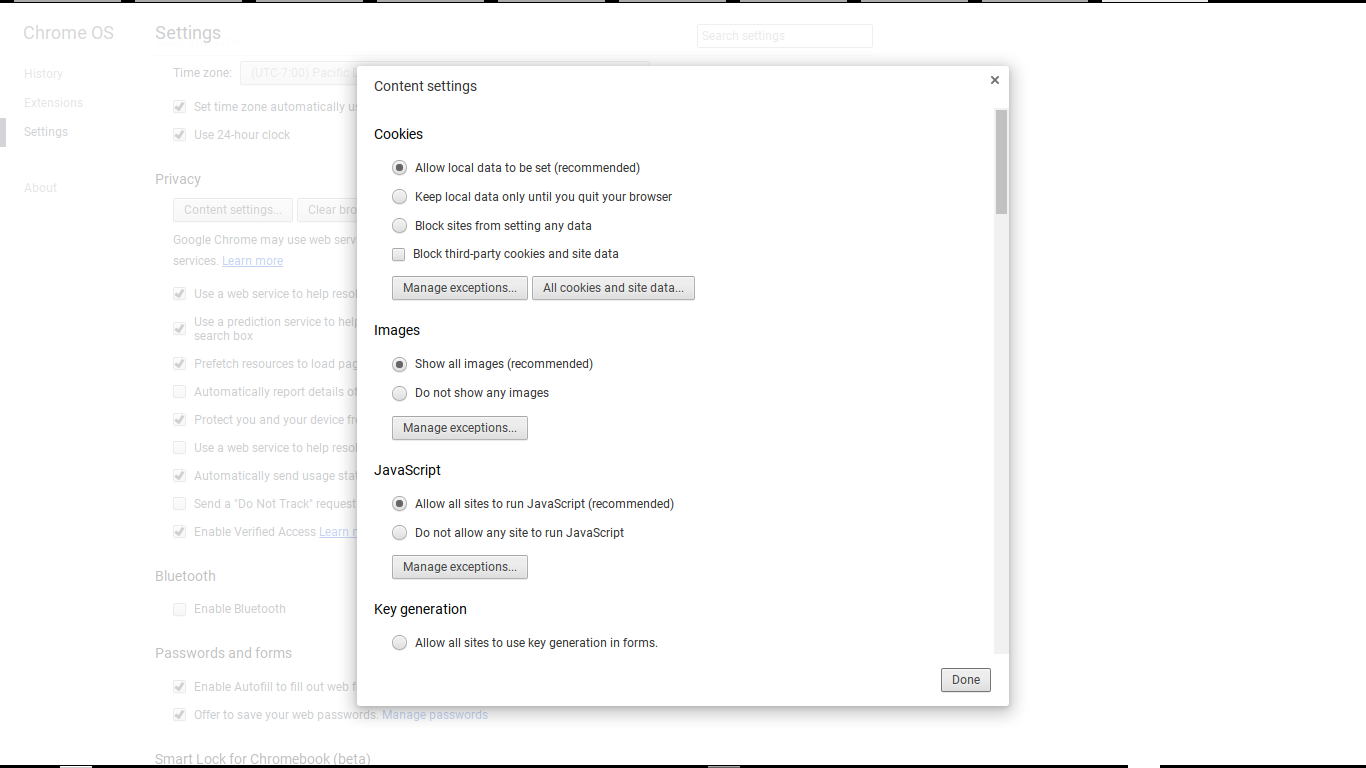
With Chrome, you enable cookies, using Settings ("Customize and control Google Chrome") - aka the 3 bar toolbar icon.

In Settings, if necessary, click on "Show advanced settings" at the very bottom of the page. Under Privacy, click on "Content settings", which gives you the "Content Settings" wizard.

Here, you have selections for Cookies and Javascript - including "Manage exceptions" for each section. Select the recommendation.

  • Cookies: Allow local data to be set

Hit "Done" - and close the Settings tab.


From "Privacy", hit "Content settings".


Under "Cookies", select "Allow local data to be set".


If you want to enable cookies selectively, select "Block third-party cookies and site data". Then use "Manage exceptions", and add "blogger.com", "google.com", and any addresses which apply to your blog.

Setting the cookie filters in Firefox.

With Firefox, you enable cookies, from the browser menu - aka the 3 bar toolbar icon, using Preferences - Privacy.

  • Under History, select that "Firefox will:" is set to "Remember history" then "Use custom settings for history". That will give you an array of settings.
  • Check "Accept cookies from sites".
  • Close Preferences. Settings will be saved.
  • Note that any Firefox add-ons which filter cookies, and offer more detailed options, will have to be dealt with, separately.


Select "Remember history", then "Use custom settings for history".


Check "Accept cookies from sites".


If you want to enable cookies selectively, change "Always" to "Never". Then use "Exceptions", and add "blogger.com", "google.com", and any addresses which apply to your blog.

Setting the cookie filters in Edge / Internet Explorer.

With Edge / Internet Explorer, you enable cookies, using the browser menu, selecting Tools - Internet Options. Optionally, you may access the "Internet Options" applet directly from the Windows Control Panel.

  • Edge / IE uses a zone defense setting, where you designate "blogger.com" and "google.com", in Security, as being in the Trusted zone. Please note that "blogspot.com" should not be in the Trusted zone.
  • Default settings for the Trusted zone will allow proper filtering of scripts.
  • Verify proper settings, with "Trusted sites" selected, and the Security level slider control set to "Medium". Hit "Custom level", and examine the Settings list.
  • You enable Cookies under the "Privacy" tab.
  • Move the Privacy slider to the bottom, to allow all cookies.
  • Click "OK".

Setting the cookie filters in Opera.

With Opera, you enable cookies, using the Advanced tab, in the Preferences wizard. Select "Accept", to accept cookies from all sites.

Setting the cookie filters in Safari.

With Safari, you enable cookies, using the Preferences wizard. The Privacy wizard, in Preferences, contains selections for cookies ("Cookies and website data”). Select "Always allow", to enable third party cookie access.

Cookie filters cause half of the problems reported, with many Blogger features.

Maybe 50% of the problems, reported in Blogger Help Forum: Get Help with an Issue, with many Blogger features involve cookie filters.

  • Comments.
  • The Cookie Advice Banner.
  • Post/Page/Template Preview.
  • Reading List.
  • Template Designer.

Stats and the "Don't track ..." option used to involve third party cookies, for many years. In March 2016, "Don't track" was rewritten to run under the URL of the blog, when being set - and now requires enabling scripts from the blog URL.

Consider how your blog is published.

If your blog is published to "blogspot.com", consider the non "blogspot.com" alias that may be relevant to your country. If your blog is published to a custom domain, consider the custom domain URL.

Many computers have other relevant settings, which block cookies.

Many blog owners and readers will have computers, and networks, with additional protection. Cookies, in the browser, may not be the only filter that needs to be checked - but this is a start, to learning how to control the cookie filters.

Having checked and corrected your cookie filters, continue by checking browser script filters - then check cookie and script filters, outside the browser. Be aware that many settings may not be obvious - and that both obvious and obscure settings may be updated, without your intention or knowledge.

Learn more.


Many #Blogger problems are cause by overly restrictive cookie filters. If you, a blog owner or reader, are going to use Blogger successfully, you need to configure your browser properly.

Blogger Support For iOS / Safari Apps Decreases

Every different browser and operating system, when supported by Blogger, requires more unique code - makes Blogger more complicated to maintain - and makes Blogger features less stable.

Right now, Blogger Engineering is refocusing their efforts on more popular browsers and operating systems - and simplifying Blogger features. This will require that some Blogger components be discontinued.

We see the recent query, in Blogger Help Forum: Get Help with an Issue, about iOS and the (mobile computer) Blogger app.
Blogger seems to have disappeared from the app store on iPad...
And a response from a Blogger staff member.
Usage for our iOS app is low, so we’ve decided to remove it and better streamline our tools for Blogger.

Support for Safari is similarly limited. Blogger blog owners have had problems, using Safari / iOS, constantly.
Because there is no scroll bar, I am unable to edit the end of the post, either on Safari or Chrome.
Safari, on iOS and Windows, has been a support problem for years - regardless whether it is an officially supported browser.

In order to make Blogger more usable by more blog owners, Blogger Engineering may be restricting support, for less popular features - including the Blogger app on iOS. This may be part of the Blogger dashboard stabilisation effort, started several months ago.

The Apple store may have alternate options.


BlogPress is not free - but it may be your best choice.


Right now, some blog owners are using BlogPress, with their iOS devices, for publishing their blogs. This is not a free app - but it may be the best solution, for blog owners who use iOS.


Some blog owners are noting limited support for #Blogger, for those who use iOS / Mac / Safari browser and operating systems. Blogger Support implies this is necessary, because of low demand.

Whatever the reasoning, iOS / Mac users may need alternate solutions, for using Blogger.

Blogger And Mobile Computers

Using the term "mobile computer" is an example of the challenges involved, in using this variety of computer.

Even identifying this device, which is present in so many different manifestations, is confusing.
  • Mobile Computer.
  • Mobile WiFi device.
  • Personal Digital Assistant.
  • Pocket phone.
  • Smart Phone.
  • Tablet.

As the use of mobile computers becomes more common, we're seeing more and more problem reports and questions, from people unable to use Blogger.
  • Some folks would like to maintain and publish their own blog.
  • Others would like to post comments to their friends blogs.
  • And still others don't understand why all of the various gadgets on their blog don't work for their friends, who are also using their own mobile computers.

One of the challenges of mobile computers involves the use of smaller displays, and the need to simplify the content displayed. This requires the use of special browsers and templates, which are designed to accommodate the limitations. The need to support additional browsers and templates creates more work for Blogger Engineering, who now has more different products to support.

Also, many mobile computers are designed to work over proprietary networks, provided by various "phone" companies. Blogger has traditionally supported use of alternate services - email, and SMS - for publishing posts to their blogs.

All of these differences create complexity, and additional possibilities for failure. And we see more problem reports, attributed to use of "mobile" computers.

Full function ("desktop" / "laptop") computers have challenges - but they are still easier to use.

We know about the different major browser brands, and the differences created by the use of each browser, on our desktop and laptop computers.

Chrome, Firefox, Internet Explorer, Opera, Safari all have their various peculiarities. These differences are multiplied, when considering the issues involved in developing new features - and in keeping up with new browser versions, and continually updating the various Blogger features and wizards, when required.

Besides the various different browsers, we have to consider the different activities involved in using Blogger. Browsing blog posts, browsing comments, publishing comments, maintaining the blog, and publishing posts, are all different activities - and have their own different needs.

The relative lack of limitations in "desktop" / "laptop" computers still makes each different activity simpler for the blog owner or reader. The process of developing and supporting the different Blogger features is easier for Blogger Engineering. These differences are not so transparent, when using a "mobile" computer.

Mobile computers have known limitations.
  • Reduced display size.
  • Reduced display colour depth.
  • Reduced processor speed.
  • Lack of various system features and utilities.
  • Lack of a physical keyboard.
All of these details require mobile browsers and templates which operate differently, and the various Blogger features and processes must be used differently.

Try performing the various tasks identified above, using your desktop and mobile computer - and observe the differences. You'll quickly realise the differences, when browsing blog posts, browsing comments, publishing comments, publishing posts, and maintaining your own blog.

One of the workarounds, used by Blogger, to deal with the reduced functionality of a mobile browser / computer, is the "mobile" template. The mobile template, which is optional for all modern Blogger blogs, displays only text and pictures - and eliminates the many accessories, gadgets, and shiny formatting which may be seen in any blog with a "normal" template.

The different layouts of the posts and comments, on a mobile template, makes posting comments a different experience - and the lack of the various gadgets will produce different visitor activity.

Alternatively, when one wishes to publish Blogger posts using a "mobile" computer, the "Blogger" mini app - written specifically for the various different "mobile" computer platforms - may be used. The "Blogger" app has its own shortcomings, such as causing posts to mysteriously revert to Draft status, from time to time.

The differences between the various "desktop" browsers are considerably less noticeable than the differences between some "mobile" browsers and computers. Most desktop computers use 3 different operating systems.
  • Apple / Macintosh.
  • Linux / Unix.
  • Microsoft Windows.
Even with the different operating systems, the realities of marketplace competition creates some interoperability between the different desktop operating systems - and the different browsers are similarly common in design.

The better known mobile computers also have 3 major different operating systems.
  • Android.
  • Apple/iOS.
  • Microsoft Windows.
Not all PDAs and smart phones use the standard 3 operating systems, however - some use proprietary browsers and operating systems, unique to the manufacturers. And the proprietary networks, provided by the different phone companies, further reduce the possibility of interoperability.

Lack of interoperability is going to create differences in how well different applications, such as Blogger, operate on the different mobile computers. These differences will be more significant than the differences created by the various "desktop" browsers, and operating systems - and we'll see more complaints from blog owners who can't use Blogger on their tablet, or whose readers can't post comments, using their smart phones.

Increasingly common use of multimedia content (both music and video) on mobile computers - combined with the lack of consistent support for cookies and scripts (and possibly, filtering of cookies and scripts) - will make availability of content differ, from computer to computer. Another problem here is lack of consistent support for the Adobe Flash product - which makes some YouTube content non playable, on some mobile computers.

Also consider the various security issues which may be different with mobile computers. Both the different security threats, and the different protective features, will make secure use of mobile computers a challenge - particularly when carried in public.

Fortunately, as mobile computers benefit from ongoing technological advances, improved design of mobile computers may make some limitations less significant. Improved displays, operating systems, and additional security devices are all coming. Google "Material Design" techniques will merge designs for "desktop", "laptop", and "mobile" variants of various Blogger / Google services.

As people buy and use more mobile computers, the differences between "desktop" and "mobile" computers will narrow. And use of different new desktop and mobile features, like innovative computer desktops, and products like Android Wear and Google Glass, will force desktop, laptop, and mobile computers to converge in functionality.

>> Top

We Are At The Mercy Of Every Anti-Malware Protection Program Imaginable

We see reports, from time to time, in Blogger Help Forum: Something Is Broken, about blogs which people can't read, from their computers.
One of my readers claims that I have a virus on my blog. He provided the following information:
AVG anti-virus detected the following threat on the site:
File Name: www.mydomain.com/favicon.ico

Threatname: Exploit Black Hole Exploit Kit
How do I fix this?

Similar to the many reports that we process here, about spurious spam classification, the above report is frequently determined to be a false positive. An anti-virus alert, even if a false positive, is generally not as simple to resolve as a spurious Blogger spam classification, though.

One of the frustrating problems with false malware alerts is that they come from so many different anti-malware products.

I've contributed my opinion about computers, and the suggestion that no two privately owned computers are identical, many times. One way which many computers vary is the complement of security software, which is chosen by each different computer owner.

At any time, any different anti-malware product may decide that some component of your blog is unsafe.
  • Maybe, a single file mentioned in your blog code (as above, "favicon.ico") is suspect.
  • Maybe, content hosted by "blogspot.com" is unsafe.
  • The code may be an accessory that we added, intentionally.
  • The code may be content in another blog - hosted by your blog in a bloglist, a linklist, or maybe in the Reading List on your dashboard.
In either case, you (or your reader) won't be allowed to view the blog - or may be allowed to view the blog, but given a stern warning which very few chose to accept.

Like many problems with layered security, any malware detection can come from
  • A native browser filter.
  • A filter in a browser add-on.
  • A filter installed on the computer.
  • A filter in a network appliance.

Listen to your computer. some time. Your anti-virus protection may update, automatically - and may audibly announce the update. On a typical day, I hear the Avast client on my several computers announce an update, several times - and I am not (contrary to some misconceptions) seated in front of my computer on a 24 x 7 basis.

Avast (my personally and professionally recommended choice, to many people) is only one of dozens of various anti-malware products which receives automatic updates, when the host computer is online. Any one of these products may be updated, at any time -and somebody's access to your blog (or my blog) becomes blocked.

If you get a message from one of your would be readers
I can't view your blog!
this could be someone reporting that your blog just went offline, for one reason or another - or it can be someone just discovering that the anti-malware program, on his computer, has decided that BlogSpot hosted content, or Blogger code in general, is unsafe. In either case, there is not a lot that you can do, except wait it out - and concentrate on the readers who can access your blog.

>> Top

Would Be Blog Owners Report Inability To Create A Blog

We are currently seeing frustration, in Blogger Help Forum: Something Is Broken, about new blog creation.

Would be new blog owners have various concerns
I can't create a blog - the "Create" button is grey (inoperative)!
or
It keeps saying
Verifying availability
when I enter a blog name!!
or even
It said
This blog address is available.
until I hit "Create blog!" - then it changed to
Sorry, this blog address is not available.

Each of these problem reports - and others - may come from people who don't read the instructions, for using the wizard. Alternately, some folks may be complaining about yet one more case of over done layered security.

The most obvious problems, in the blog creation process, come from people who don't understand how to use the "Create a blog" wizard.

Not every would be blog owner understands that 3 things must be done, to make the "Create blog!" button operative - and all 4 must be done, before the blog is actually created.
  1. Enter a Title for the blog.
  2. Enter an acceptable and available Name for the blog.
  3. Select a Template for the blog.
  4. Hit "Create blog!", with "This blog address is available." displayed.

When you choose a Name (aka "address" or "URL"), enter your choice properly.
  • Only enter the "xxxxxxx" part of "xxxxxxx.blogspot.com".
  • Only use lower case alphabetic characters ("a" - "z"), numeric characters ("0" - "9"), and dashes ("-").
  • Do not use a trailing dash (You cannot publish "xxxxxxx- . blogspot . com").

Besides the syntax issues when entering a blog name (URL), there is the unfortunate issue of competition in the creation process. Blog owners who are anxiously creating a new blog, based upon a current event - maybe a popular movie star, or an important political campaign - will be dismayed to see
Sorry, this blog address is not available.

If you are competing in real time, with other would be blog owners, for the name of your choice - and you take too long between Steps #1 - #3, and Step #4 - you may still see
Sorry, this blog address is not available.

Many people want to setup a blog, based on that blog name. Some may see the bad news, repeatedly, leading to one frequently seen complaint.
All the good addresses are taken!
And sometimes, to a more imaginative suggestion.
How do I get Blogger to re issue me the dormant address?
The latter question is one of futility.

Finally, the anxious blog owner may see
Checking address availability
for some time - possibly forever - if an overly ambitious cookie / script filter, or an intrusive security add-on is installed in the browser. In this case, the magical advice to
Clear cache and cookies!
or
Try a different browser!!
will be effective - though absent any attempt to diagnose the problem, one may not ever know what actual underlying problem may have caused the plaintive cry
I can't create my blog!

Some Blog Owners Reporting The Template Designer Changes Do Not Update On Their Blogs

For several weeks, we're been seeing various reports in Blogger Help Forum: Something Is Broken, mentioning problems with template updates, being made using the Template Designer wizard.

The reports are not so widespread to indicate a complete malfunction - but neither can we dismiss the problem, as being unique to one browser, one template type, or one particular update pattern.

It's likely that we are looking at a number of problems, aggregated and compounded, into one common symptom.
I cannot Save changes in Template Designer.
With a problem report like this, some examining of the details may be appropriate.

The Template Designer wizard, which is a component in the Blogger Dashboard, is a complex and sophisticated collection of menus and utilities, which runs on the blog owners computers.

Like most Blogger code, the Template Designer is subject to the effects of other programs, and various security settings - which may be installed or set on each individual computer, with or without the understanding of the blog owner and / or computer owner. In some cases, the blog owner and computer owner may be different people.

If you are seeing a problem with the Template Designer, when trying to update the layout on your blog, there are several tests which you can make, which may help to isolate the problem.
  • Try making the same updates, using another computer.
  • Try making the same updates, using another browser on your current computer.
  • Try setting up a new blog, with the same template, and make the same updates to the new blog.
If you're able to make one or more of the above alternate updates, that will help to eliminate some, or many, alternate suspects, as the cause of your problem. If other people are reporting this problem, their results from the above tests may or may not correspond with yours - because their base problem may differ from yours.

Right now, we're seeing seven different causes of these problems.
  1. Changes made by Blogger Engineering, to support new browser versions and browser updates, and to provide new template features.
  2. Changes inherent in new browser versions, made by the browser vendors.
  3. Third party browser add-ons, installed by the owners of the various computers.
  4. Security settings, inherent in new browser versions and third party add-ons.
  5. The cumulative effects of various template tweaks, both made using "Edit HTML" and the Template Designer itself.
  6. Unrealistic expectations of blog owners, about effects of Template Designer settings, against all templates provided by Blogger.
  7. Unrealistic expectations of blog owners, about effects of Template Designer settings, against templates not provided by Blogger.
Of these possible causes, only #1 (and possibly #2 and #6) are the sole responsibility of Blogger Engineering. The blog owners (and computer owners) must assume some partial responsibility for #2 - and sole responsibility for #3, #4, and #5. The blog owner, and the developer of any custom, third party template, must jointly assume responsibility for #7.

Recently, Blogger Support acknowledged the problem, in part.
Some users have reported that the Apply to Blog button in the Template Designer is non-functional for some Dynamic View templates.
We also have a Rollup Discussion, in Blogger Help Forum: Something Is Broken, where individual details are being provided by various blog owners.

Right now, we're starting to suspect that some "problems" are actually caused by the blog owners, who are simply not aware that not all changes made, using the Template Designer (or the Layout or Template "Edit HTML" wizards), are designed to update all templates used in viewing our blogs.

Disable The Mobile Template, On Your Blog - As A Default View

Over a year ago, Blogger introduced a useful template option for our blogs - mobile templates.
Blogger mobile templates are mobile-optimized versions of our Template Designer templates. If you are using one of these templates, when you enable the mobile template option your blog will begin rendering using the mobile version of the same variant. Even if you are not using a Template Designer template, or using a heavily-customized version of one, you can still enable this feature to have your blog start rendering in a generic default mobile template that we have created.
The mobile templates let computers with lower display size / resolution - aka PDAs, mobile phones, and smart phones - display the content of our blogs, without the unnecessary overhead which may be a part of our normal blog formatting.

If you are viewing this post on your smart phone, it's likely that you are viewing it using a mobile template. As exciting as the mobile templates are, however, they will not replace the normal, full feature templates - on every blog, or on every mobile computer.

Not every blog owner, nor every visitor, wants to view any given blog using a mobile template. Some tablet computers have display units which rival normal desktop displays from a few years ago - and low feature, mobile templates are unnecessary. Fortunately, there are a number of options - for the blog owner, and for the blog visitor.

If you are a blog owner, you can disable the mobile template, as a default, for your blog. For those blog owners who have forgotten how they set the mobile template on their blog, you use the "Template - Choose mobile template" wizard, from the gear icon beneath Template - Mobile. Simply select "No. Show desktop template on mobile devices.", and Save - and that's it.

If your blog has a Classic Template, you can disable the default mobile template from your blog, with a little extra bit of effort.
  1. Start with the Template wizard, and select "Upgrade template".
  2. Once your blog has an upgraded template, you can use the "Choose mobile template" wizard, and select "No.".
  3. Go back to the Template wizard, and at the bottom find "Revert to classic templates".
  4. Selecting the latter link, your blog will be back to the previous, Classic template.
  5. But now, the default Mobile template will be disabled.

Upgrade your blog, to a Designer template.

Return your blog, to a Classic template.

Having set - or un set - the default mobile template for your blog, your visitors have the final say, how they want to view your blog. If you are the visitor, you can choose, with a little effort.

Any time you are viewing a Blogger blog, from any computer, you can select - or de select - the mobile template for the blog which you are viewing. Just use the appropriate mobile template URL suffix.You can view a blog using a mobile template on your desktop computer - or a blog using a full feature template on your mobile computer. It's now your choice.

This blog, viewed from this computer, using a Mobile template.
Unfortunately, it's your choice, when you use your mobile computer, only. You have only two choices, for your blog.
  • Don't enable the mobile template.
  • Enable the mobile template.


Each of your readers have to choose how to view your blog - if you choose to offer the mobile template.

>> Top

After Using "Buy a domain", Blog Owners Are Seeing "Server error" From Google Apps

Ever since Google ended its free Google Apps accounts, we've been seeing reports in Blogger Help Forum: Something Is Broken, about problems encountered when setting up a new Google Apps account, to administer a newly purchased custom domain.
Every time I try to login to Google Apps, using instructions in the email message, I get
Server Error: We could not process your request at this time, please try again later.

The limited function free Google Apps accounts, which can be only used for domain maintenance, do not work with the Google Apps account setup wizard, which is generally used after using "Buy a domain". When you see "Invalid request" or "Server error", you need to reset the password for the "bloggeradmin" account, for your domain.

Start by accessing the Google Apps administrative account reset wizard, for your domain. If you use GMail for your email, or other Google products, try to use a different browser for Google Apps. Alternately, use an "Incognito" window, in Chrome - or a "Private" window, in Firefox. Or, clear cache, cookies, and sessions - then restart the browser, when possible.

For this domain, "nitecruzr.net", I would access the account reset wizard as
http://google.com/a/cpanel/nitecruzr.net/ResetAdminPassword
or possibly
http://google.com/a/nitecruzr.net/ResetAdminPassword

You simply change "nitecruzr.net", to your domain URL, to reset the administrative password for your domain.
(Update 2013/11/03): This process should be slightly simplified, with Google Apps now using the new integrated Google login screen.
Having solved the CAPTCHA in the reset screen, Google will send a password reset email message, for the "bloggeradmin" account for your domain, to the email address used by your Blogger account. Once again, this is a bad time to be using Blogger anonymously.

Open your email, then open and execute the email message, to reset the bloggeradmin Google Apps account. Be sure to enter the complete Google Apps account name, in the Google account reset screen.

Once the password is reset, login to Google Apps. Then retrieve the login tokens, from the Google Apps desktop, to access eNom or GoDaddy.

>> Top

Use Free Online Website Display Services, To Diagnose Browser Related Problems

Look at the Audience display, in Stats. How many different entries do you see, in "Pageviews by Browser" and "Pageviews by Operating System"? Stats lists are limited to 10 entries, each. Do you ever wonder if those lists, like the other Stats lists, should be longer? How do we ever hope to observe our blogs, and see what they look like, for our many different readers?

One of the challenges of publishing a Blogger blog is developing a blog that looks good, on every reader's browser and computer. The number of combinations of operating system times browser brand times browser version - any of which can create a display oddity, when viewing any blog or website - is staggering.

How can we ever hope to produce a blog that's universally readable? We can always (depending upon the capacity of the computer(s) which we may use) use different browsers, to monitor ongoing issues which might affect our blog's legibility. Knowing the real number of combinations that may affect our readers, will using one or two alternate browsers (on one single operating system) really accomplish much?

One way that we can keep some running idea what our blogs look like, in different browsers, is to use an online browser display analysis service. This is an essential part of verifying proper formatting, as we make changes.

Free online services, like AnyBrowser or BrowserShots, will show you what your blog looks like, by simulating it on different browsers. Their displays, on your browser and your computer are obviously subject to peculiarities of your browser and computer, of course - but their services are a good start.

For in depth research, the W3Schools Online Web Tutorials will identify, in detail, which features are supported, in different browsers.

>> Top

Stats And The "Don't track your own pageviews" Option On Mobile Computers

As mobile computing becomes more popular, we're starting to see questions about use of the Blogger dashboard on mobile computers (iPhone / iPod, PDA, smart phone), in Blogger Help Forum: Something Is Broken. Most recently, we're seeing people trying to use Stats, and the "Don't track my own pageviews" option, with Blogger on mobile computers.

Problems with Stats and the "Don't track ..." option are not unknown, in the past. We've helped many blog owners with this setting, which is sensitive to cookie and script filtering in general - and to "third party cookies" in particular. "Third party cookies" may be filtered in any of several places, any which will interfere with "Don't track ...".

The "Don't track ..." option, when seen as a problem with "full size" computers (desktop, laptop / notebook), may involve any of various "layered security" settings. In general "full size" computers use a somewhat standard software infrastructure. While any of several operating systems (Apple / Macintosh, Chrome, Linux, Microsoft Windows), and various browsers (Chrome, Firefox, Internet Explorer, Opera, Safari) make use of Blogger an occasional challenge on "full size" computers, there is some common features between the various operating systems and browsers.

With the various "operating systems" and browsers on mobile computers, we're seeing more discrepancies in features offered. In particular, not all "mobile computers" have explicit settings to allow / disallow "third party cookies" - or even cookies and scripts, in general. If these settings are not present, it's likely that these computers do not support such details as "third party cookies".

Without the availability of "third party cookies", Blogger can't support the "Don't track ..." option. Here, I'll note that this option is specific to each individual browser, on each individual computer. One must set the option - and browse the specific Blogger blog - using the same browser, for the option to work. This is not an option that can be set on a per user basis, and apply to all browsers used by a specific user.

>> Top

Use A Well Protected Browser, To Block Redirecting From Misbehaving Code And Gadgets

Regularly, in Blogger Help Forum: Something Is Broken, we advise people about problem code or gadgets in their blogs.

Generally, this follows reports by blog owners, that their readers are being redirected to unexpected and unwanted blogs and websites, from their blogs. Sometimes, we get the reply
I can't remove the code. Every time I login to Blogger, I am redirected, just as my readers are being treated!

When we see the latter complaint, we recognise yet one more blog owner who does not know how to properly protect himself, from malicious code and websites. Most people, who know about Layered Security, know that proper browser security is an essential complement to a properly chosen and maintained anti malware filter.

Many people, who care about browser based security, use Firefox with NoScript.

This combination provides Unix level security, "deny by default, permit by exception". Simply install NoScript as an add-on, to Firefox, to get started. Alternately, you may use Chrome with ScriptSafe, or Opera with NotScripts.

When using your browser with a script filter, there will be specific Blogger / Google websites which you should trust, and others which you should not trust.

Every time you surf to a different website - and decide that the owners of the website, which you are now viewing, have your best interests in mind - configure NoScript to allow that website, to display properly on your computer. When you find that a trusted host website does not display properly, examine the NoScript taskbar and the list of websites used by the host website. Look at the NoScript Options menu, carefully. Allow specific websites which you trust, and Forbid all other websites which you do not trust.

Deciding which websites to trust, based on their presence in the NoScript Options menu, will be a learning experience for a while. For some host website pages, which use a large number of unfamiliar websites, you may have to carefully select to "Temporarily allow all this page" - or you can "Temporarily allow" each single website, one by one, until the host website page displays properly.

When you decide to (permanently) "Allow" any website, that website will be "Allowed" on all other host websites where you may surf. Conversely, any website which you never select to "Allow" - such as the problem website which is providing the misbehaving code - will never execute on your computer again. This will prevent redirection on your computer, allow you to safely use the Blogger dashboard, and edit or remove any dodgy code which may be part of your blog.

After removing any dodgy code from your blog, always clear cache and restart Firefox, to test the effects of your editing.

>> Top

Blogger Blogs Lack The Navbar, Though Not Removed By The Owner

Recently, a few Blogger blog owners are looking at their blogs and wondering
Where is my Navbar?
or
Why don't I have a "Sign In" ("Sign Out") link, at the top of the page?


When investigating further, they may discover that none of the blogs, that they view, shows the Navbar. And, they did not intentionally make any template changes, to their blog, to hide the navbar.

Many of these people, later investigating the problem in Blogger Help, learn that their browser, or another anti malware product, is blocking the navbar as suspicious code. This is another example of improperly configured layered security, planned to protect our computers.

If you are observing the lack of the navbar on your computer, and you request help in Blogger Help, please help us to help you better, and provide details.
  • What browser (name and version - and precision matters) are you using?
  • What add-ons are installed, in the browser (completeness matters)?
  • What anti malware product(s) do you use, on your computer (again, completeness matters)?
If we can get an idea of what components are involved in this problem, maybe we can isolate the problem, itself. Please, be complete - and be precise.

>> Top

Contact Us

24x7 online , we happy to answer you
tamilcypc@gmail.com

Disclaimer

This Blog and its TUT's are intended for educational purposes only, no-one involved in the creation of this TuT may be held responsible for any illegal acts brought about by this Blog or TuT.


Featured Post

Custom Domains And HTTPS Redirection Code