Latest News

Showing posts with label ToolBox. Show all posts

Diagnosing Geographical Location / IP Address

We see various problems reported, in Blogger Help Forum: Get Help with an Issue, which may involve geographical or network relationships.
Why can't I regain access to my blog, that I stopped publishing 5 years ago?
and
Why can't I see my blog?
and
Why does my dashboard show up in a language that I can't read?
With questions like these, it helps to know how and where the owner and / or readers of the blog get Internet service.

Geographical location and IP address are useful details, when diagnosing various problems with our blogs.

  • Access and authentication.
  • Connectivity.
  • Language.

Address / location diagnosis is not a difficult procedure, given the right tools. As an example, click on each of these three links, one by one. Print or copy text details, as convenient - then combine and compare the details, from the different services.


There are other similar tools, that I may identify later.

I'll show each location discovery tool, from various geographical locations. This will illustrate the uncertainties of geographical vs geolocated location - and why use of multiple ("redundant") online diagnostic tools is a good idea.

I clicked on each link, twice - while connected differently - and made the screen prints from these geographical locations. I may show additional locations as I use them.

  • 22 May, 2016: MacDonalds, Martinez CA
  • 23 May, 2016: StarBucks, Martinez CA


"IP-Details.com"
Date: 22 May, 2016
Diagnosed Location: Austin, TX
Geographical Location: MacDonalds, Martinez, CA
IP Address: 64.134.233.29
Provider: MacDonalds


"IP Location"
Date: 22 May, 2016
Diagnosed Location: Valencia, CA
Geographical Location: MacDonalds, Martinez, CA
IP Address: 64.134.233.29
Provider: MacDonalds


"Info Sniper"
Date: 22 May, 2016
Diagnosed Location: (Los Angeles, CA)
Geographical Location: MacDonalds, Martinez, CA
IP Address: 64.134.233.29
Provider: MacDonalds


"IP-Details.com"
Date: 22 May, 2016
Diagnosed Location: Bedminster, NJ
Geographical Location: MacDonalds, Martinez, CA
IP Address: 70.197.3.7
Provider: Verizon Cellular


"IP Location"
Date: 22 May, 2016
Diagnosed Location: Rohnert Park, CA
Geographical Location: MacDonalds, Martinez, CA
IP Address: 70.197.3.7
Provider: Verizon Cellular


"Info Sniper"
Date: 22 May, 2016
Diagnosed Location: (Los Angeles CA)
Geographical Location: MacDonalds, Martinez, CA
IP Address: 70.197.3.7
Provider: Verizon Cellular


---


"IP-Details.com"
Date: 23 May, 2016
Diagnosed Location:
Geographical Location: StarBucks, Martinez, CA
IP Address: 50.247.110.187
Provider: StarBucks


"IP Location"
Date: 23 May, 2016
Diagnosed Location: Menlo Park CA
Geographical Location: StarBucks, Martinez, CA
IP Address: 50.247.110.187
Provider: StarBucks


"Info Sniper"
Date: 23 May, 2016
Diagnosed Location: Milpitas CA
Geographical Location: StarBucks, Martinez, CA
IP Address: 50.247.110.187
Provider: StarBucks


"IP-Details.com"
Date: 23 May, 2016
Diagnosed Location: Bedminster, NJ
Geographical Location: StarBucks, Martinez, CA
IP Address: 70.197.12.193
Provider: Verizon Cellular


"IP Location"
Date: 23 May, 2016
Diagnosed Location: Salinas CA
Geographical Location: StarBucks, Martinez, CA
IP Address: 70.197.12.193
Provider: Verizon Cellular


"Info Sniper"
Date: 23 May, 2016
Diagnosed Location: South San Francisco CA
Geographical Location: StarBucks, Martinez, CA
IP Address: 70.197.12.193
Provider: Verizon Cellular


"IP-Details.com"
Date: 5 June, 2016
Diagnosed Location: Bedminster, NJ
Geographical Location: Martinez, CA
IP Address: 70.213.0.103
Provider: Verizon Cellular


"IP Location"
Date: 5 June, 2016
Diagnosed Location: Berkeley CA
Geographical Location: Martinez, CA
IP Address: 70.213.0.103
Provider: Verizon Cellular


"Info Sniper"
Date: 5 June, 2016
Diagnosed Location: Oakland CA
Geographical Location: Martinez, CA
IP Address: 70.213.0.103
Provider: Verizon Cellular


Geolocation is a useful diagnostic tool, when diagnosing various Blogger problems - but geolocated details, using the above tools (or complementary procedures), need to be persistently cross checked. Tomorrow, or from a different location or service, one may see different results.

Access and authentication.

Sometimes when trying to regain access to a dormant blog, you'll be advised to access from the previously used computer. Google uses location comparisons, as part of demographic authentication.

Connectivity.

Some blog disconnections may have geographical origin. Knowing where you, and other blog readers may be (or appear to be), can be useful in determining a geographical relationship between problems.

Language.

Blogger uses geolocation to determine appropriate local language. Knowing where you are - or appear to be - can be useful in determining why you may be seeing the Blogger dashboard and / or your blog, in a given language.

The bottom line.

Along with blog address / name / URL verification, location diagnosis is a useful procedure - but the results need to be considered discretely.


When diagnosing various access / connectivity problems with #Blogger, knowing the IP address and location of the reported problem is useful. It's easy to get the desired details - but the details may need to be verified, carefully.

https://productforums.google.com/d/topic/blogger/4LkxHxYsj1c/discussion

Blogger Magic - Using Sitemaps To Diagnose Problems

Knowing how to read, and follow, sitemap entries is a useful skill in diagnosing many Blogger problems.

The Blogger generated sitemaps, which apply to each blog, index both pages and posts. This blog, like every other blog, has two sitemaps, automatically generated.

"sitemap.xml" (posts) roughly duplicates the "Archives" gadget - but has advantages, over the gadget. "sitemap-pages.xml" (static pages) is not redundant, to any Blogger accessory.

The two Blogger generated sitemaps provide possibilities for content and problem analysis, unequaled by any Blogger accessory.


The posts sitemap is valuable.

  • The Archives gadget, which provides a canonical list of posts, is not included on all blogs.
  • The Archives gadget, for most blogs, must be examined one month at a time - and does not provide a search option.
  • Manually searching for a post, using "Older Posts", is time consuming.

The pages sitemap is especially valuable.

  • There is no canonical accessory, that lists pages.
  • The Pages gadget only lists pages that the owner wants to index.

You can view pages, and posts, using either sitemap. Note only a published page or post will be listed. Draft status pages and posts will not be listed.

This blog, like many, has a paged posts sitemap.

Each posts sitemap page will list up to 150 entries. Any blog with over 150 posts will have a paged sitemap.

http://blogging.nitecruzr.net/sitemap.xml


The posts sitemap, for this blog.


Page 1 of the posts sitemap contains the 150 most current posts.

http://blogging.nitecruzr.net/sitemap.xml?page=1


Page 1 of the posts sitemap, for this blog. It's a very simple display - just URL and "last edited" date / time, for each post.


Here is the pages sitemap.

http://blogging.nitecruzr.net/sitemap-pages.xml


I don't have a lot of pages published, in this blog, that are of public interest.


You can access pages and posts, from the sitemap.

Using browser features, you can access any listed page or post, directly from either display.


Highlight the URL that you need to examine.


Right click, select "Go to http://blogging.nitecruzr.net /p/what-are ...".


And there is the page in question.


You can access "http://blogging.nitecruzr.net/p/what-are-differences-between-pages-and.html" from the pages sitemap - or "http://blogging.nitecruzr.net/2013/12/what-are-differences-between-pages-and.html" from the posts sitemap.

Most browsers have a right click context menu, and a "Go to (URL)" selection - and provide direct access to any page or post, using a properly formatted URL.


The recently added #Blogger generated pages and posts sitemaps offer canonical access to all published pages and posts, in every publicly accessible blog. These sitemaps are useful to people - as well as to search engines and other indexing processes.

Blogger Magic - Using An HTTP Trace

An HTTP trace is a very useful tool, for diagnosing and documenting connectivity issues, and many other blog problems.

I use the Rex Swain HTTP Viewer, for this purpose. HTTP Viewer lets you package a given display, in the URL, so you can give simple instructions (accompanied by an unavoidably complicated link):
Click on the link:
http://www.rexswain.com/cgi-bin/httpview.cgi?url=http://klarfamilylife.blogspot.com&uag=Mozilla/5.0+(X11%3B+CrOS+armv7l+7834.70.0)+AppleWebKit/537.36+(KHTML,+like+Gecko)+Chrome/49.0.2623.112+Safari/537.36&ref=http://www.rexswain.com/httpview.html&aen=&req=GET&ver=1.1&fmt=AUTO
And when the link is clicked, the necessary HTTP trace is displayed. There is no need to provide instructions how to actually enter the necessary values, on the HTTP Viewer home page, to generate the necessary display.

I use the Rex Swain HTTP Viewer, for diagnosing and documenting custom domain, malware, spam classification, and other connectivity issues.

Start by verifying URLs involved.

Whenever possible, make a screen print, and a text copy, of the Blogger dashboard Publishing wizard, at Settings - Basic.

Here's a live example, of HTTP Viewer use.

http://www.rexswain.com/cgi-bin/httpview.cgi?url=http://klarfamilylife.blogspot.com&uag=Mozilla/5.0+(X11%3B+CrOS+armv7l+7834.70.0)+AppleWebKit/537.36+(KHTML,+like+Gecko)+Chrome/49.0.2623.112+Safari/537.36&ref=http://www.rexswain.com/httpview.html&aen=&req=GET&ver=1.1&fmt=AUTO

Start from http://www.rexswain.com/httpview.html.


Note, HTTP Viewer only works in HTTP mode. SSL is not supported. Fortunately, right now, the automatic "http:" to "https:" Blogger redirect, which is not optional, does not affect HTTP Viewer.


Add the URL of the blog, and click on "Submit".


This generates a lot of text. I'm not going to explain all of it, in this post.


Since Blogger blogs have no post limit, I'll have more posts, later, that will involve HTTP Viewer displays.


But here's the second page, of the above display.


And here is the typical excerpt, that I will make, and display.

http://www.rexswain.com/cgi-bin/httpview.cgi?url=http://klarfamilylife.blogspot.com&uag=Mozilla/5.0+(X11%3B+CrOS+armv7l+7834.70.0)+AppleWebKit/537.36+(KHTML,+like+Gecko)+Chrome/49.0.2623.112+Safari/537.36&ref=http://www.rexswain.com/httpview.html&aen=&req=GET&ver=1.1&fmt=AUTO

Sending request:

GET / HTTP/1.1
Host: klarfamilylife.blogspot.com
User-Agent: Mozilla/5.0 (X11; CrOS armv7l 7834.70.0) AppleWebKit/537.36 (KHTML, like Gecko) Chrome/49.0.2623.112 Safari/537.36
Referer: http://www.rexswain.com/httpview.html
Connection: close
• Finding host IP address...
• Host IP address = 172.217.0.1
• Finding TCP protocol...
• Binding to local socket...
• Connecting to host...
• Sending request...
• Waiting for response...
Receiving Header:

HTTP/1.1·500·Internal·Server·Error(CR)(LF)

This is an example of a notorious "500 Internal Server Error" - which right now is plaguing various blog owners who have corrupt templates. This is what we see with many blogs, when people report various bX codes, when using several Blogger dashboard pages.

  • Template.
  • Template - "Customize" (aka "Blogger Template Designer").
  • Template - "Edit HTML" (aka "Blogger Template Editor").

Here's a second live example.

http://www.rexswain.com/cgi-bin/httpview.cgi?url=http://blogging.nitecruzr.net/&uag=Mozilla/5.0+(X11%3B+CrOS+armv7l+7834.70.0)+AppleWebKit/537.36+(KHTML,+like+Gecko)+Chrome/49.0.2623.112+Safari/537.36&ref=http://www.rexswain.com/httpview.html&aen=&req=GET&ver=1.1&fmt=AUTO

Here, we have an HTTP trace from this blog, http://blogging.nitecruzr.net/.


And, my typical display - which you might see, as an "HTTP trace excerpt", in a custom domain connectivity diagnosis.

http://www.rexswain.com/cgi-bin/httpview.cgi?url=http://blogging.nitecruzr.net/&uag=Mozilla/5.0+(X11%3B+CrOS+armv7l+7834.70.0)+AppleWebKit/537.36+(KHTML,+like+Gecko)+Chrome/49.0.2623.112+Safari/537.36&ref=http://www.rexswain.com/httpview.html&aen=&req=GET&ver=1.1&fmt=AUTO

Sending request:

GET / HTTP/1.1
Host: blogging.nitecruzr.net
User-Agent: Mozilla/5.0 (X11; CrOS armv7l 7834.70.0) AppleWebKit/537.36 (KHTML, like Gecko) Chrome/49.0.2623.112 Safari/537.36
Referer: http://www.rexswain.com/httpview.html
Connection: close
• Finding host IP address...
• Host IP address = 74.125.25.121
• Finding TCP protocol...
• Binding to local socket...
• Connecting to host...
• Sending request...
• Waiting for response...
Receiving Header:

HTTP/1.1·200·OK(CR)(LF)

<meta·content='blogger'·name='generator'/>(LF)
<link·href='http://blogging.nitecruzr.net/favicon.ico'·rel='icon'·type='image/x-icon'/>(LF)
<link·href='http://blogging.nitecruzr.net/'·rel='canonical'/>(LF)
<link·rel="alternate"·type="application/atom+xml"·title="The·Real·Blogger·Status·-·Atom"·href="http://blogging.nitecruzr.net/feeds/posts/default"·/>(LF)
<link·rel="alternate"·type="application/rss+xml"·title="The·Real·Blogger·Status·-·RSS"·href="http://blogging.nitecruzr.net/feeds/posts/default?alt=rss"·/>(LF)
<link·rel="service.post"·type="application/atom+xml"·title="The·Real·Blogger·Status·-·Atom"·href="https://www.blogger.com/feeds/24069595/posts/default"·/>(LF)

The latter connectivity diagnosis might be a part of my 12 link affinity / differential connectivity test.

My trace excerpts include details which I, personally, decided are most useful for me. You may find additional - or less - details to be useful, for you.

Here, we see just two examples, of my HTTP traces. There are an infinity of possibilities.


An online HTTP trace is a useful diagnostic tool, when diagnosing and identifying many different #Blogger problems. Custom domain, malware, spam classification, and other connectivity issues may be diagnosed and documented.

Blogger Magic - Reading A Dig Log

Whether you're setting up or troubleshooting a custom domain, knowing how to read a Dig log is a useful skill.

There are hundreds of registrars, serving the Internet community, each with their own dashboard. Blog owners, setting up their domains for their Blogger blogs, must deal with the syntax and terminology used by each different dashboard.

A Dig log lets the blog owner identify the DNS addresses for the domain, using a consistent display.

By identifying the DNS addresses used in a given domain, a blog owner or an experienced forum helper can diagnose many custom domain DNS related problems.

Here is an example of Dig log use, showing an excerpted Dig log, in a typical forum topic. For more detail, see my earlier post, Diagnosing Problems With Custom Domains: Dig.

I have a domain (www.rockchickenz.com) - and want to link my blog (rockchickenz.blogspot.com).

  • Start by verifying URLs involved.
  • Continue with Dig Web Interface.
  • A full screen print of the Dig log.
  • The relevant portion of the Dig log, from the screen print.
  • The relevant portion of the Dig log, as text.
  • The advice provided, to the blog owner.
  • Alternate / complementary tools used.

Start by verifying URLs involved.

Whenever possible, make a screen print, and a text copy, of the Blogger dashboard Publishing wizard, at Settings - Basic. Knowing the status of the blog and domain - and the exact URLs involved - can go a long way to diagnosing many custom domain publishing problems.

Continue with a Dig Web Interface log.

The best tool for generating a Dig log is Dig Web Interface. Alternate / complementary tools are listed below.

I use DWI, for this purpose, by preference. DWI lets you:

  • Package the URLs in the Dig target, in the reference URL.
  • Include multiple target URLs, in one reference URL.
  • Both capabilities are very useful, in diagnosing Blogger custom domain publishing problems.


Start from the Dig Web Interface page.


Add the domain root and "www" alias, under "Hostnames or IP addresses:".

I select Type: "A", and Nameservers: "Authoritative", for my actual diagnoses.

Click "Dig".


The Dig Log reference URL, for "rockchickenz.com", generated from DWI. Target URLs are "rockchickenz.com" and "www.rockchickenz.com".

http://www.digwebinterface.com/?hostnames=rockchickenz.com%0D%0Awww.rockchickenz.com&type=A&ns=resolver&useresolver=8.8.4.4&nameservers=

A full screen print of the Dig log.

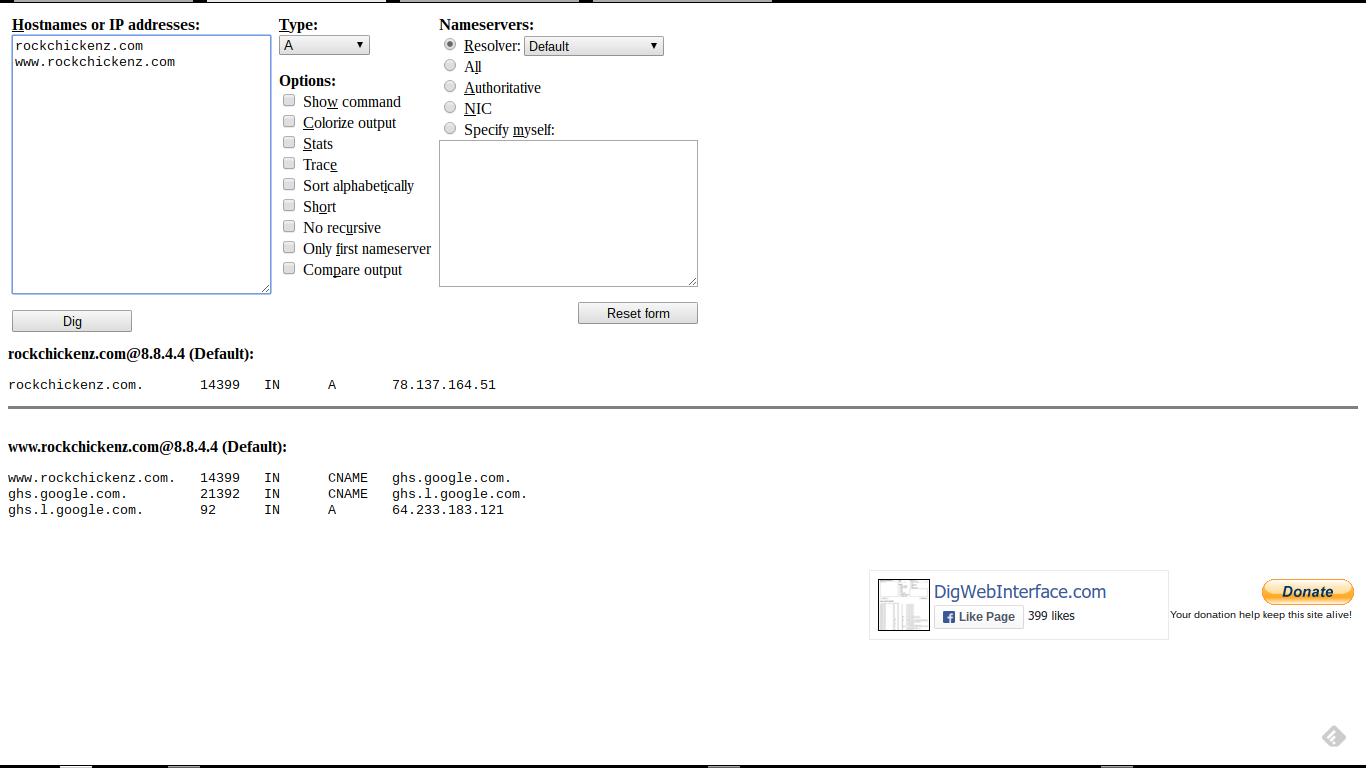
This is the complete Dig log, resulting from the Dig Log URL (above), and containing the relevant portion (below).


This is the Dig log, for "rockchickenz.com".


The relevant portion of the Dig log, from the screen print.

This is the important portion of the screen print (above), and showing the text (below).


This is the relevant portion of the Dig log, for "rockchickenz.com".


Note the TTL value of "14399" - which is a typical Dig log display for TTL set as "14400" (14400 seconds or 4 hours), in the registrar's zone editor. TTL is a setting which is used to adjust name server performance.

Unless you are experienced with DNS setup (and probably don't need to read this advice), you should use the default TTL provided by the registrar, for your domain. Your registrar wants to provide a stable domain for you - and the TTL value affects domain stability.

The relevant portion of the Dig log, as text.

These are the important details from the screen print (above), with colour highlights corresponding to domain specific details (below).

rockchickenz.com@8.8.4.4 (Default):
rockchickenz.com. 14399 IN A 78.137.164.51

www.rockchickenz.com@8.8.4.4 (Default):
www.rockchickenz.com. 14399 IN CNAME ghs.google.com.
ghs.google.com. 21392 IN CNAME ghs.l.google.com.
ghs.l.google.com. 92 IN A 64.233.183.121

The latter is typically seen, with a blog owner having received bogus advice - and reporting an inconsistently accessible blog.

The advice provided, to the blog owner.

The typical advice, provided to the blog owner, would include domain specific details - accompanied by a link to Setting Up DNS Addresses For Custom Domains.

First, generic advice:

Remove the addresses highlighted in red - and add the addresses highlighted in green - and keep the addresses highlighted in yellow.

Then, specific advice:

This is what you have:

rockchickenz.com. 14400 IN A 78.137.164.51
www.rockchickenz.com. 14400 IN CNAME ghs.google.com.

This is what you need:

rockchickenz.com. 14400 IN A 216.239.32.21
rockchickenz.com. 14400 IN A 216.239.34.21
rockchickenz.com. 14400 IN A 216.239.36.21
rockchickenz.com. 14400 IN A 216.239.38.21

www.rockchickenz.com. 14400 IN CNAME ghs.google.com.

The advice references a typical ASymmetrical DNS custom domain setup - the address set used in 99% of all custom domain setups. Note here, the specified TTL of "14400" (4 hours).

Using the above advice, the blog owner can then, if necessary, research the syntax used by the registrar's dashboard (aka "zone editor") - and make the necessary changes.

Alternate / complementary tools used.

Alternate tools, which can be used to generate a Dig log, are the Kloth.Net Dig DNS Lookup, and the Who.Is DNS display. Neither alternate is as compact and complete - but they can be used to verify results.

Complementary tools include the Global DNS Propagation Checker, the intoDNS domain DNS health checker, the Rex Swain HTTP Viewer, and the Whois Lookup.

In some cases, my 12 link affinity / differential connectivity test may be useful.

For more information.

See WikiPedia: dig (command).


One of the most useful tools, for diagnosing #Blogger custom domain problems, is a Dig Log. Learning how to read a Dig Log is a useful skill, for any blog owner wishing to publish a blog to a custom domain.

Contact Us

24x7 online , we happy to answer you
tamilcypc@gmail.com

Disclaimer

This Blog and its TUT's are intended for educational purposes only, no-one involved in the creation of this TuT may be held responsible for any illegal acts brought about by this Blog or TuT.


Featured Post

Custom Domains And HTTPS Redirection Code